Blog 26 October 2026 · 7 min read
Real user monitoring: Core Web Vitals from real visitors
How Obscenter measures page loads, LCP, INP and CLS from the visitors you actually have, and lets you click any number through to the sessions behind it.
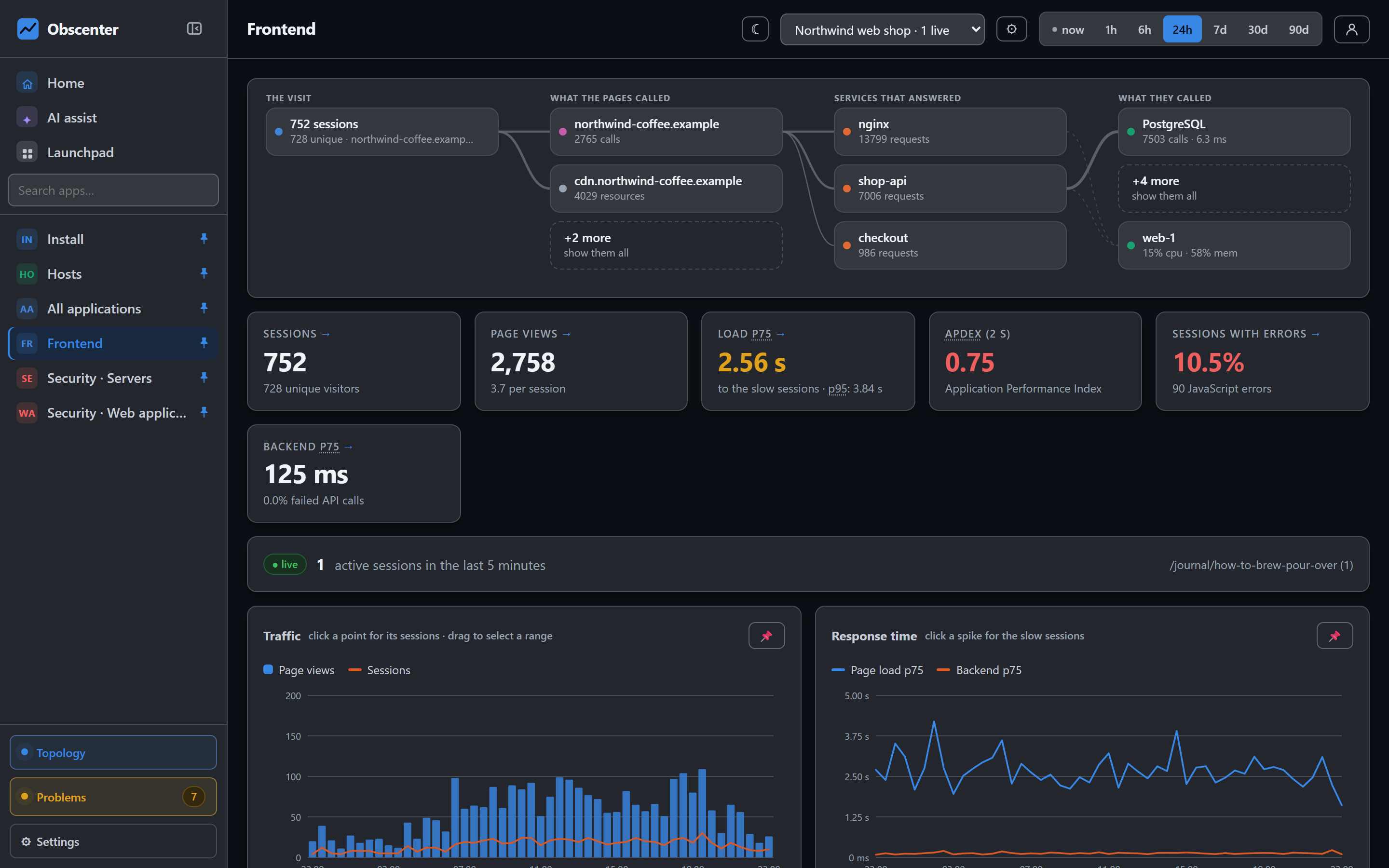
A lab test tells you how fast a page can be. Real user monitoring tells you how fast it was — for the person on an old phone, on a train, on the other side of the world. Obscenter measures every page load, every interaction and every error from the visitors you actually have, and every number it shows can be clicked through to the sessions that produced it.
This article walks through what the browser tag measures, how it gets onto a page, and what it deliberately leaves alone.
What real user monitoring measures
A synthetic test runs from one place, with one browser, on one connection. Your visitors don't. Real user monitoring (RUM) reads the timings the browser has already recorded for each real visit and sends them home, so the picture includes the slow handsets, the congested networks and the pages nobody thought to test.
For every page view the Obscenter tag records:
- The page load, phase by phase — redirect, DNS, TCP, TLS, request, time to first byte, download, DOM interactive, DOMContentLoaded and load.
- Core Web Vitals — LCP (with a selector for the element that was the largest paint), INP, CLS, plus FCP, FID and TTFB.
- Every resource the page pulled in, with its timing phases, size, protocol and whether it came from cache — the waterfall.
- XHR and fetch calls, with method, status, duration and size, and network failures marked separately.
- JavaScript errors —
onerror, unhandled promise rejections, failed resource loads, and optionallyconsole.error. - What people did — clicks on the nearest interactive element, scroll depth, rage clicks, dead clicks, and which fields were used (never what was typed).
- Long tasks — stretches where the main thread was held and the page could not respond.
Single-page applications are covered too: a route change is recorded as its own view, so a React or Vue app does not collapse into one endless page.
How to add real user monitoring to a website
The tag is one file, served by your own Obscenter install at /rum.js. There is no build step, no npm package and no CDN in between. The simplest form is a single line in the page's <head>:
<script src="https://your-collector.example/rum.js" data-key="rum_…" defer></script>The dashboard also generates an asynchronous snippet that queues any rum(...) calls made before the file arrives, and forwards the page's CSP nonce so a strict Content-Security-Policy does not silently block it.
If the server behind the site runs the Obscenter host agent, you may not need to paste anything at all: the agent reads the nginx configuration, finds the sites, and injects the tag for you. That is covered in the article on the agent.
The tag is written to stay out of the host page's way. Everything it does is wrapped so it never throws into your code; a browser without the Performance API is simply left alone. Data is batched and sent every five seconds and when the page is hidden, using sendBeacon with a plain-text body so no CORS preflight is triggered. A batch that fails because the collector is restarting is retried rather than lost.
A handful of attributes tune it: data-sample for a sticky per-visitor sampling rate, data-ignore for paths it should not measure (/admin,/internal), data-dnt="1" to honour Do Not Track, and switches to turn off resources, XHR, errors or actions individually.
Core Web Vitals from real visitors: LCP, INP and CLS
Google's Core Web Vitals are only meaningful from the field, and that is exactly where this tag reads them. Each vital is reported per view and summarised at the 75th percentile, split into good, needs improvement and poor using the published bands: LCP at 2.5 s and 4 s, INP at 200 ms and 500 ms, CLS at 0.1 and 0.25.
Two details matter when you act on the numbers:
- LCP names its element. The tag sends a short selector for the element that was the largest paint, so "LCP is 3.8 s" comes with "and it is the hero image on the product page".
- Percentiles are computed on the views that have a value. A soft navigation in a single-page app has no load time; counting it as an empty row would drag the p75 towards the median and make a slow site look fine.
Click the poor slice of any vital and you get the list of sessions that had a poor experience — not a chart of them, the sessions themselves.
Page load waterfall: where the time went
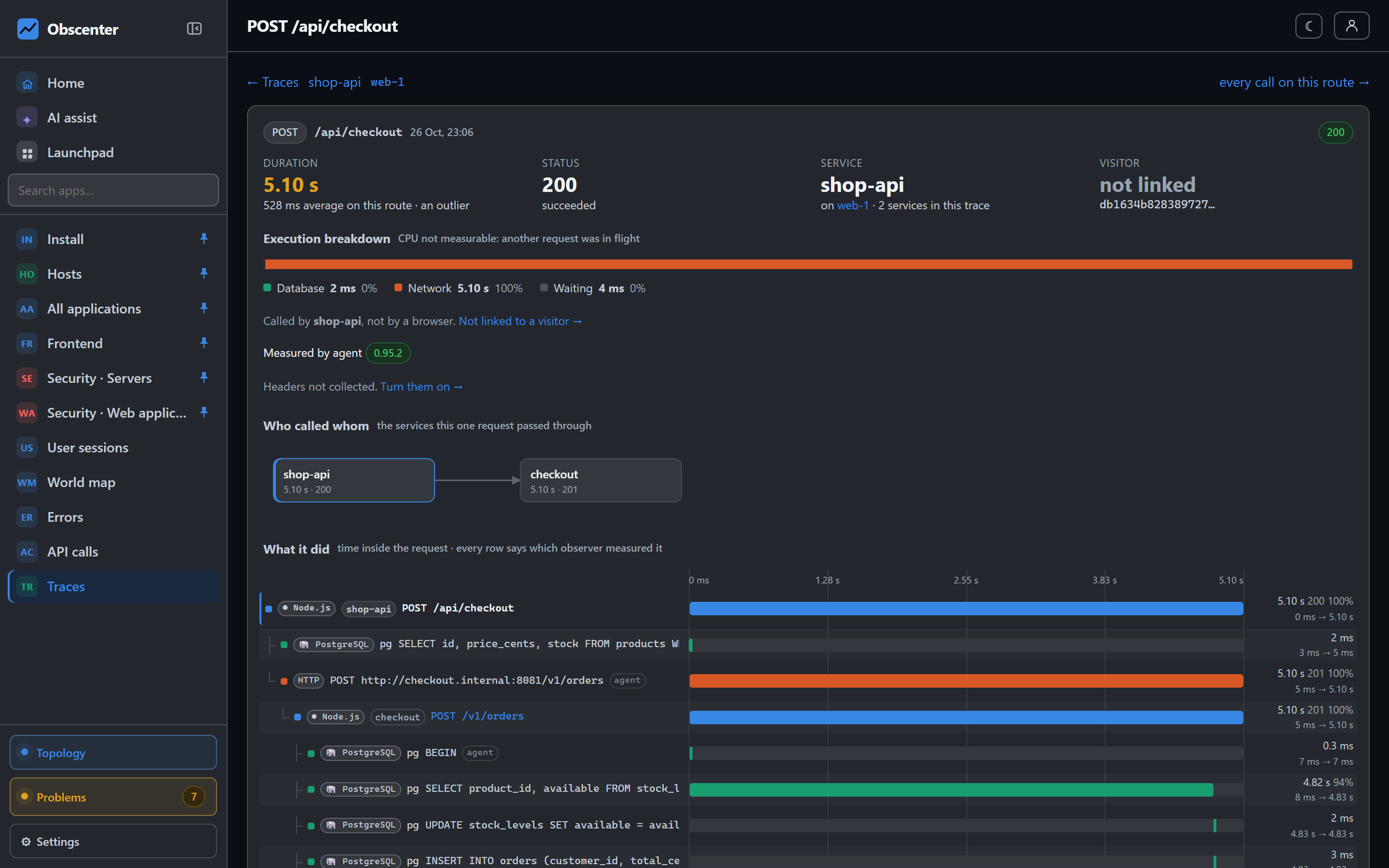
Every view opens into a waterfall of the document and each resource it loaded. The phases are non-overlapping — queueing, DNS, TCP, TLS, waiting for the first byte, download — and they add up exactly to each resource's duration, so nothing is counted twice.
Two summaries come out of that: server time (waiting for the first byte after the request was sent) and network time (everything else). When a page is slow, that split tells you in one glance whether to open the backend traces or the CDN settings.
The collector also audits the files real visitors downloaded. It fetches them itself — only URLs that appeared in the application's real traffic, never private addresses — and reports whether each is compressed, minified and cacheable. The compression saving is not an estimate: the server gzips the actual file and reports the difference.
JavaScript errors and slow API calls
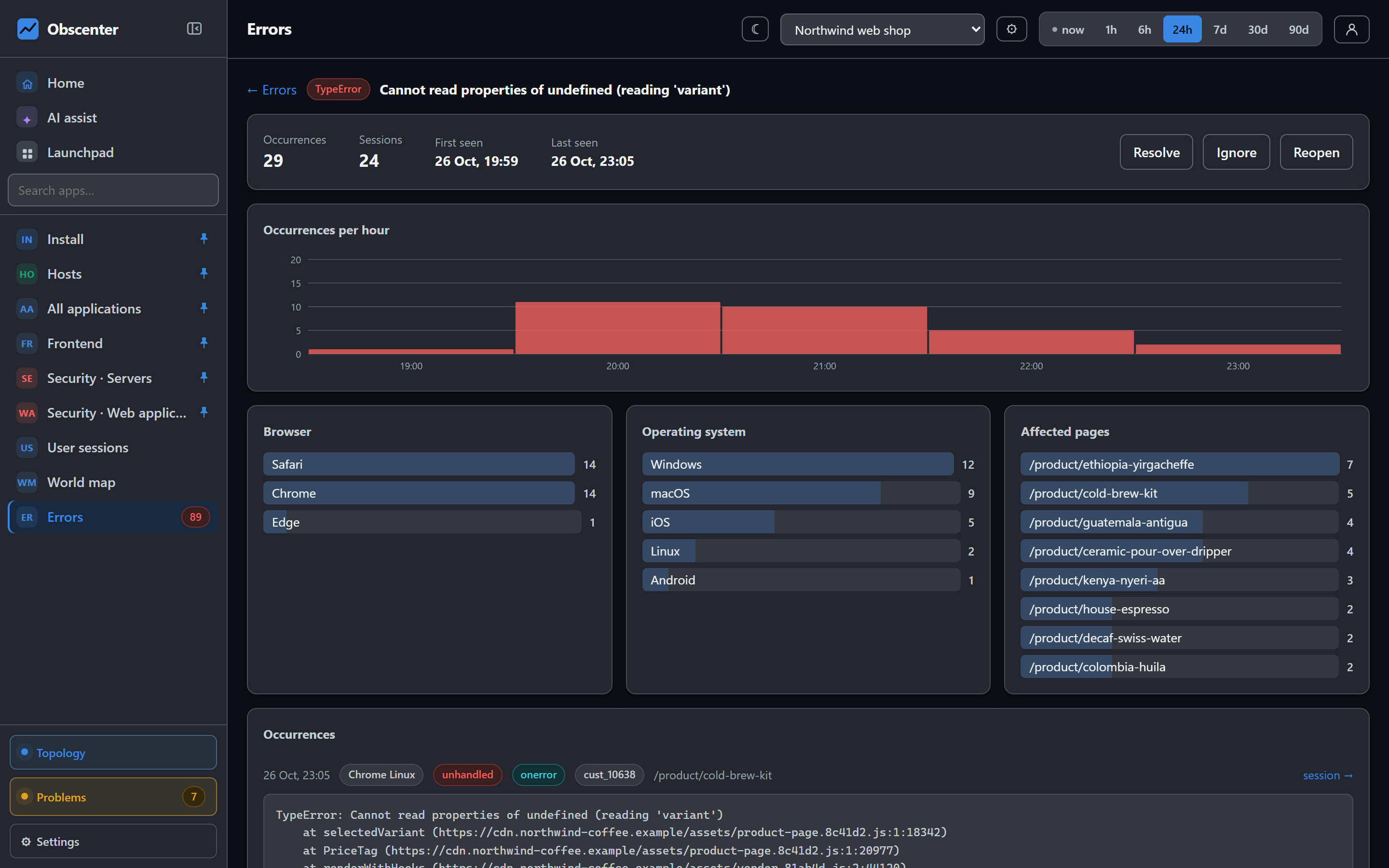
Errors are grouped by fingerprint. Numbers, hashed file names and URLs are normalised before grouping, so a new build with new bundle names does not tear one bug into twenty groups. Each group lists its occurrences, and each occurrence links to the session that hit it.
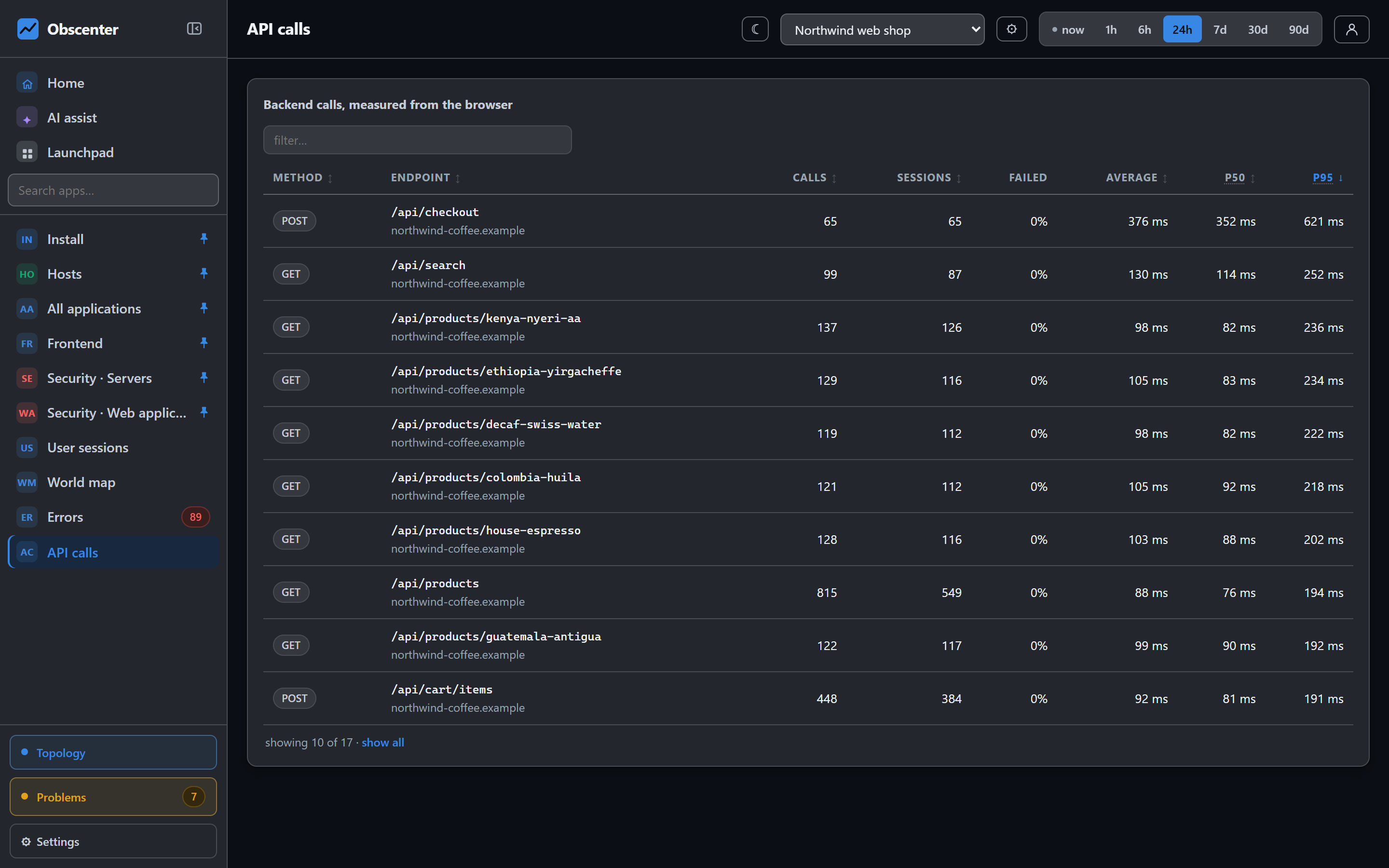
API calls are listed per endpoint with p50, p95 and error rate, so "checkout is slow" becomes "POST /api/cart has a p95 of 2.1 s since this morning". If the API runs under the Obscenter agent, the call can link to the server-side trace that answered it.
Rage clicks and dead clicks: the faults nothing else sees
A button whose handler throws produces a JavaScript error. A button whose handler silently does nothing produces no error, no failed request and no slow page — just a person clicking it four times and leaving.
The tag catches both shapes. A rage click is three clicks within 1.2 seconds, all within 40 pixels of each other. A dead click is a click after which nothing in the DOM or the URL changed for a full second. Both are counted against the sessions they came from, and the problem engine judges them: ten rage clicks from one visitor is one bad afternoon, ten across ten sessions is a broken control, and only the second opens a ticket.
From any number to the sessions behind it
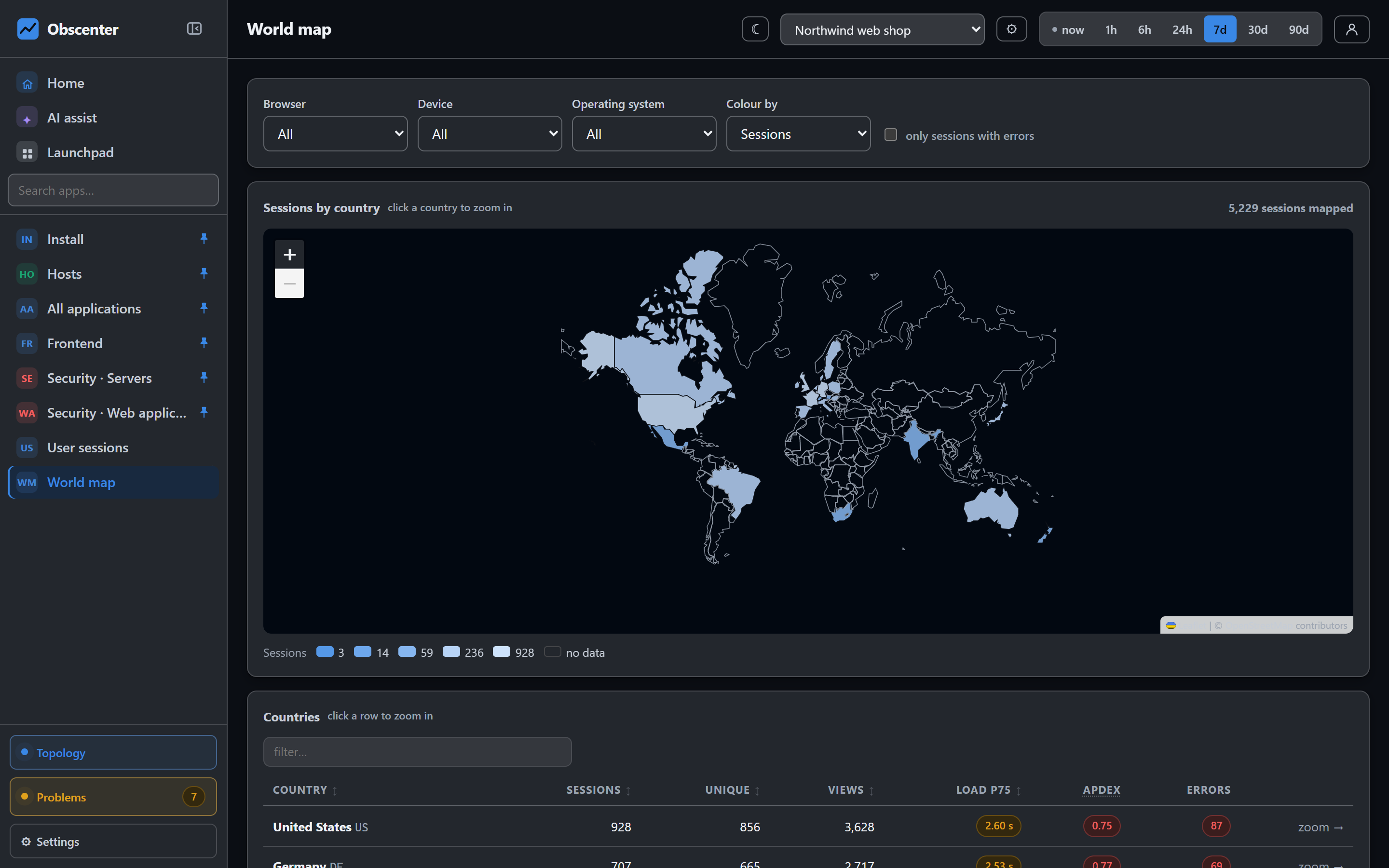
This is the rule the whole frontend side is built on: an aggregate you cannot click through is unfinished. A KPI tile opens its sessions. A point on a time series opens that window's sessions; a dragged range opens the range. A browser, OS, device, country or referrer bar opens that segment. The active filters stay on screen as chips you can remove one at a time.
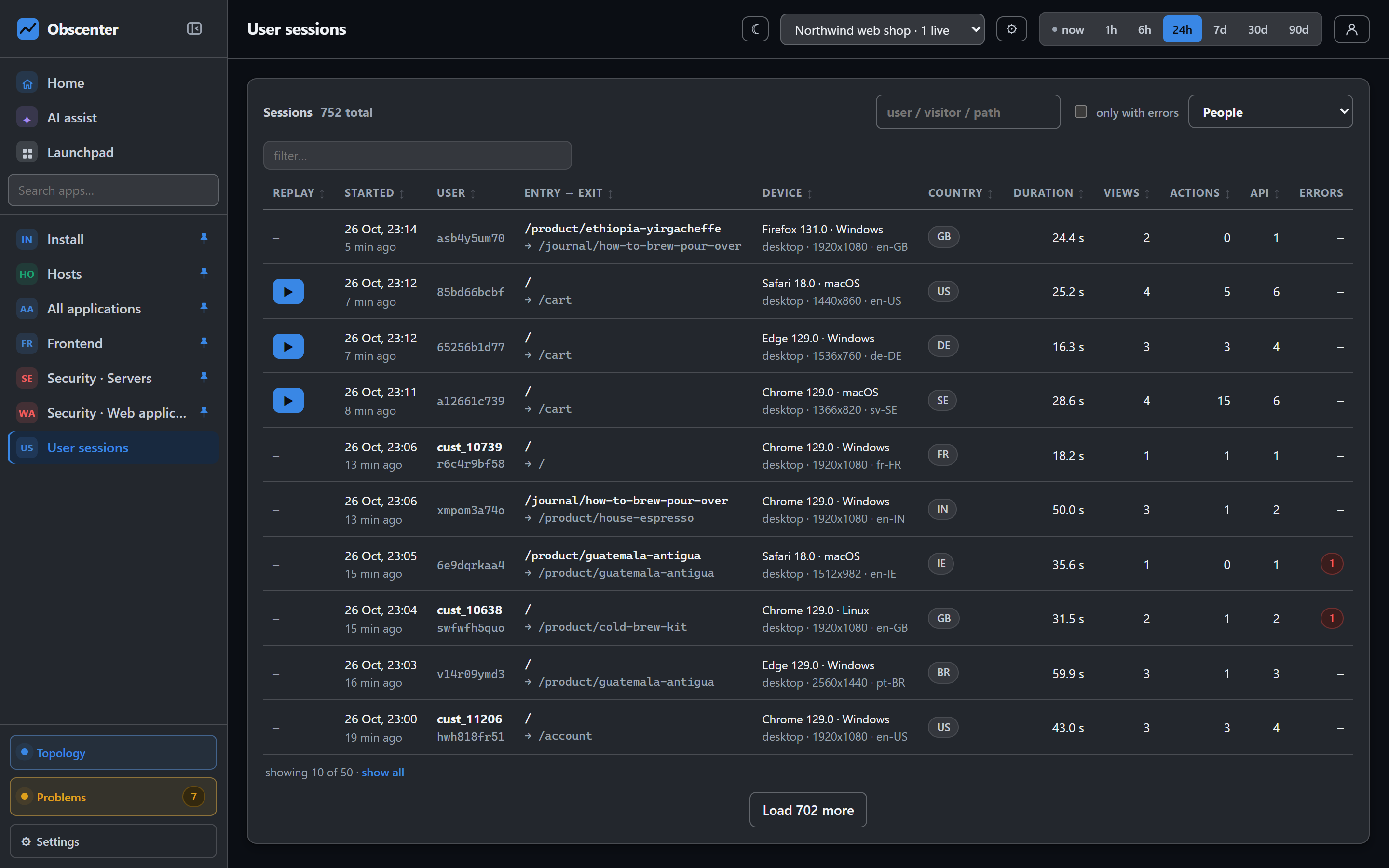
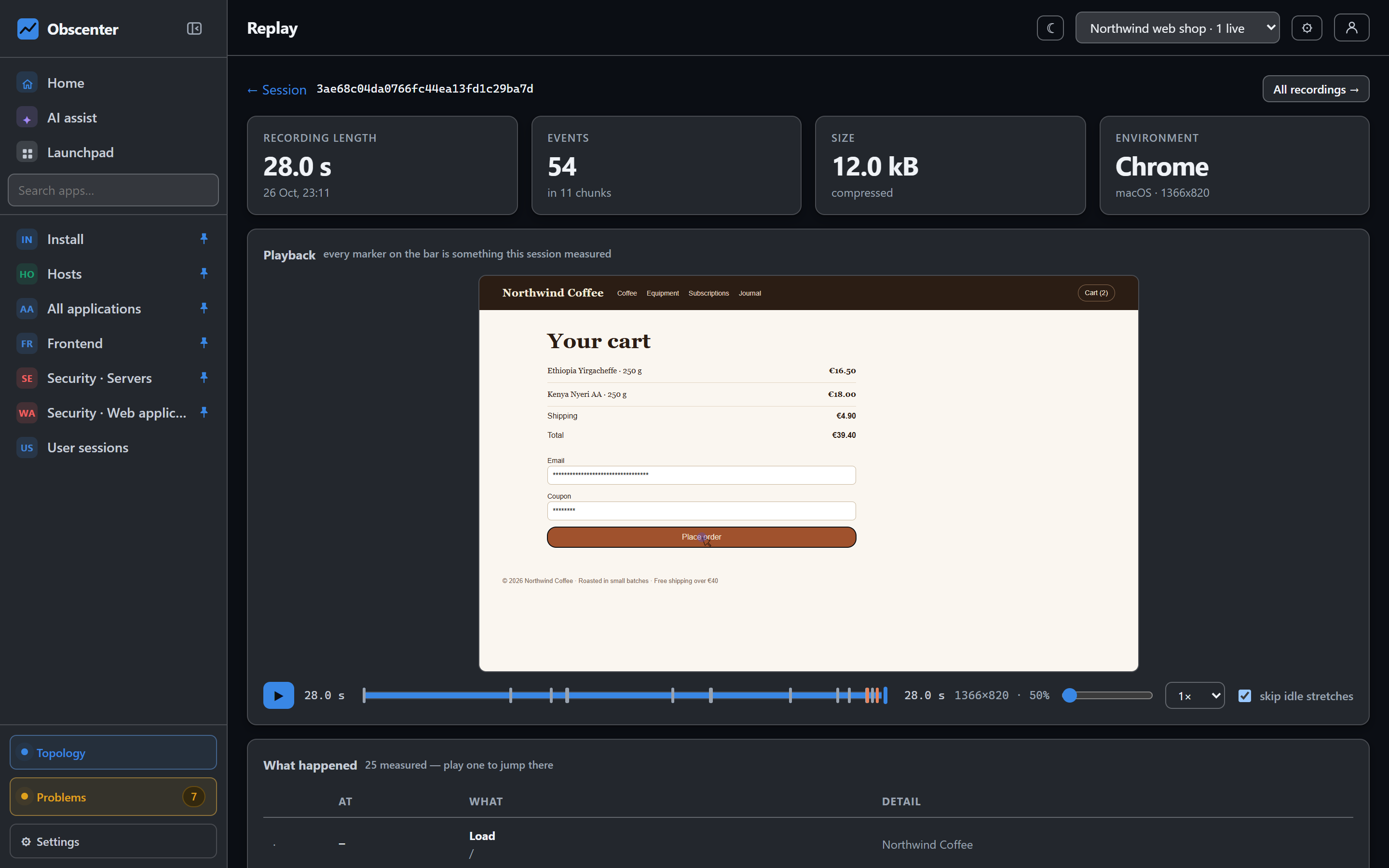
Each session shows its pages, timings, errors, clicks and device details, and — if session replay is on for that application — a play button. Replay has its own article.
What the tag does not collect
A monitoring tag runs on somebody else's visit, so what it leaves out matters as much as what it measures:
- No cookies. The visitor and session ids live in the site's own local storage.
- No form values. A field's name may be recorded; what was typed never is. Fields that look like passwords, card numbers, CVVs or tokens are skipped entirely.
- No IP addresses by default. The collector keeps a salted, shortened HMAC that is enough to count unique visitors and useless for identifying anybody. Country and region are looked up locally from a table on the server.
- Clicked text can be masked with
data-mask-text="1".
The install page turns this into a paragraph you can paste into your privacy policy, generated from the application's real settings, so it changes when you change them.
Try it on your own site
Create an application, put the tag in your page, and the first sessions arrive within seconds. The hosted version at obscenter.site is open for sign-ups: a 15-day free trial with 1 server, unlimited websites and mobile apps; then a licence — info@obscenter.site.
Start free or read Getting started.