Docs Start
Getting started
Create an Obscenter account or run your own install, add your first web application, install the server agent and see the first data arrive.
This page takes you from nothing to a website and a server reporting. It takes about ten minutes. Each step links to a page with the full detail.
1. Choose where it runs
Use the hosted install
Open obscenter.site and choose Registration on the sign-in page. Enter your email address, a password of at least eight characters, and a name for your organisation, such as your company, team or project. You are signed in straight away as the owner of a new, empty organisation.
A confirmation link goes to your address and is valid for 48 hours. The dashboard does very little until you click it. If the mail does not arrive, the Home page has a Resend button. See Registration, invitations and sign-in.
A new organisation on obscenter.site starts with a 15-day free trial with 1 server, unlimited websites and mobile apps; then a licence — info@obscenter.site. When the trial ends without a licence, monitoring pauses and nothing is deleted. See Plans and limits.
Or have it on your own server
If your data has to stay on your own machine, we install Obscenter there for you. The code is not published, so it is not something you download. Write to info@obscenter.site to request an install. You provide a Linux server and an address for it. We set up the service, the reverse proxy and the first administrator, and hand the install over to you. It is the same software that runs obscenter.site, with no plan limits. See Self-hosting Obscenter.
From step 2 on, everything on this page works the same way on both.
2. Follow the steps on Home
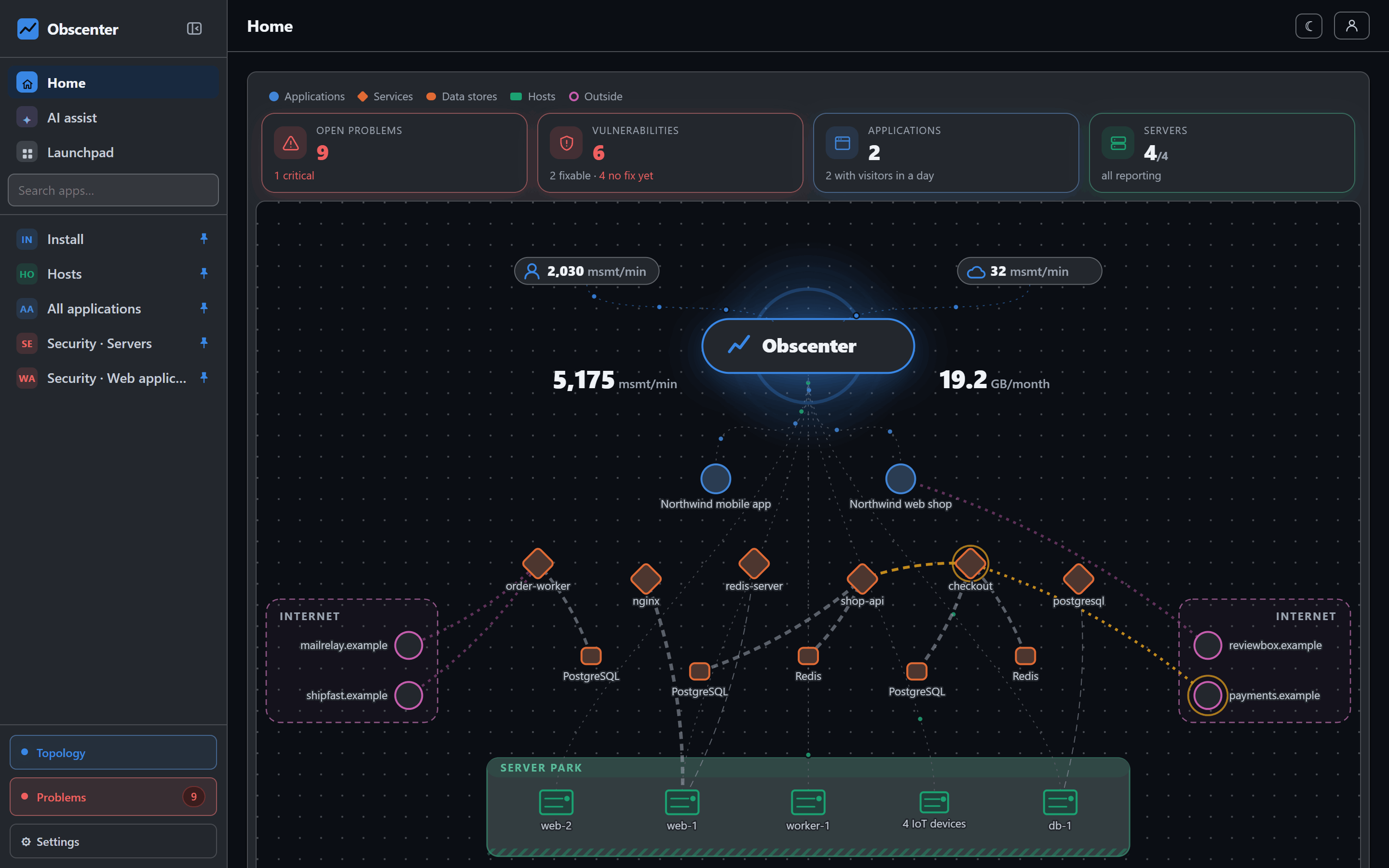
Until something reports, the Home page is a checklist:
- Create your account.
- Confirm your email address.
- Connect a first site, server or app. You can choose the server agent, the website tag or a mobile app.
- See the first data arrive.
- Decide who is told when something breaks.
- Invite your team. Only administrators see this step.
The page checks again every ten seconds and ticks steps off by itself. In the menu, Install is highlighted until the first report arrives.
3. Add your first website
Go to Launchpad → Install → Web application and press + New application. Give it a name and choose that it is a website. The tag appears:
<script src="https://your-install/rum.js" data-key="rum_…" defer></script>Put it first in the <head> of every page, so it sees the rest of the page load. Open your site in a browser, and within a minute the visit appears under Frontend. Attributes, the JavaScript API and content security policy are covered in Install the tag on a website.
4. Install the agent on a server
Go to Launchpad → Install → Host. Two boxes sit side by side, Linux and Windows, each with one command and a Copy button. On Linux, paste the command into a terminal as root, or with sudo:
curl -fsSL https://your-install/agent/install.sh | sudo sh -s -- --key agt_… --url https://your-installThe installer runs one real report before it finishes and prints what it read, and then everything the agent may change on that machine with the way to switch each part off. The machine appears under Backend → Hosts. It belongs to whoever generated the key, so on a shared install it is yours. The agent needs no inbound port and talks only to your install. A root terminal from the dashboard is off unless you tick Also allow a root terminal before copying, which adds --allow-terminal. See Install the server monitoring agent.
5. Trace your Node.js services
On Linux the agent prepares every Node.js service it finds, but restarts nothing. A service is measured from the inside once it next restarts, whether by a deploy or by sudo systemctl restart <unit>. Until then Backend → Processes shows it as ready · restart it. After the restart its requests, queries and outgoing calls appear under Backend → Services and Traces.
6. Decide who is told
Tickets open on their own, so the remaining decision is where they go. Open Settings → Notifications and add a channel: email over SMTP, a webhook, Slack or Microsoft Teams. Then add a policy that sends tickets from a chosen severity to the right people. Each person can also have tickets about what they can see mailed to their own address. See Notification channels and Notification policies.
7. Invite your team
Under Settings → Accounts, use Invite by mail and pick a role: admin, member or viewer. Members and viewers see only what they are given. See Organisations, roles and teams.
Next
Read Home, Launchpad and the dock to find your way around. To see what the engine will alert on by itself, read How problem detection works.