Blog 26 October 2026 · 5 min read
A browser terminal to any server, with no SSH port open
Open a root terminal on a monitored Linux server from the browser, through the agent already on it: nothing listening, off until the machine allows it, every session audited.
The ticket says the order worker is wedged. You know the fix: restart the service and look at its journal. What you do not have is the laptop with the right SSH key, the VPN session, or a port 22 that is reachable from where you are standing. The monitoring already reaches the machine; it is the shell that does not.
Obscenter's console opens a real terminal on a monitored Linux machine, in the browser, through the agent that is already there.
How it works: nothing listens
Nothing is dialled and nothing listens on the machine. The agent asks your install, over its normal outbound connection, whether anybody has typed — the same way it reports and checks for updates — and sends the output back the same way. Both directions are held open by long polling. There is no inbound port to open, no bastion host, and no key to distribute.
On the machine, the agent runs a real pseudo-terminal, so full-screen programs work: mc draws its window, arrow keys move, colours are colours. In the browser the terminal is xterm.js, served by your own install like its other client libraries rather than from a CDN.
Six switches, all of which must say yes
- A signed-in person. No API key of any kind can open a session, and the console is deliberately left out of the API catalogue.
- The account's Console capability — "a root shell". Off by default for members, and always off for viewers.
- The install-wide switch for terminals.
- The machine's own switch, "allow a terminal on" this host, on its settings page.
- How the machine was installed. A machine refuses every session unless it was installed with
--allow-terminal— a tick box next to the install command — or allowed afterwards, on the machine, withobscenter-agent allow-terminal. Machines installed before this was a choice keep accepting sessions until somebody runsobscenter-agent deny-terminalon them. - The machine itself. An agent started with
OBSCENTER_NO_TERMINAL=1refuses every shell, whatever the dashboard says. The box always gets the last word.
A person with limited access sees only the machines they were given. Something that is not theirs answers exactly like something that does not exist.
Using it
The console lists your machines, each with an Open button. A session that is still running offers Back to it and End it. A machine can have three sessions at once, and a session closes after 20 minutes with nothing typed — output alone does not keep it open, so a forgotten tail -f does not hold a root shell open all weekend.
Quick commands are shared buttons above the terminal. The defaults cover the first minute of most incidents:
- failed units, and service status;
- the agent's own journal;
- disk use, and the top processes by memory;
- who is listening on which port;
- restart a service — typed onto the prompt and left for you to finish, because a command that ends in a space is not run;
- the file manager.
A quick command can be for every machine or for one.
The audit: a record, not a transcript
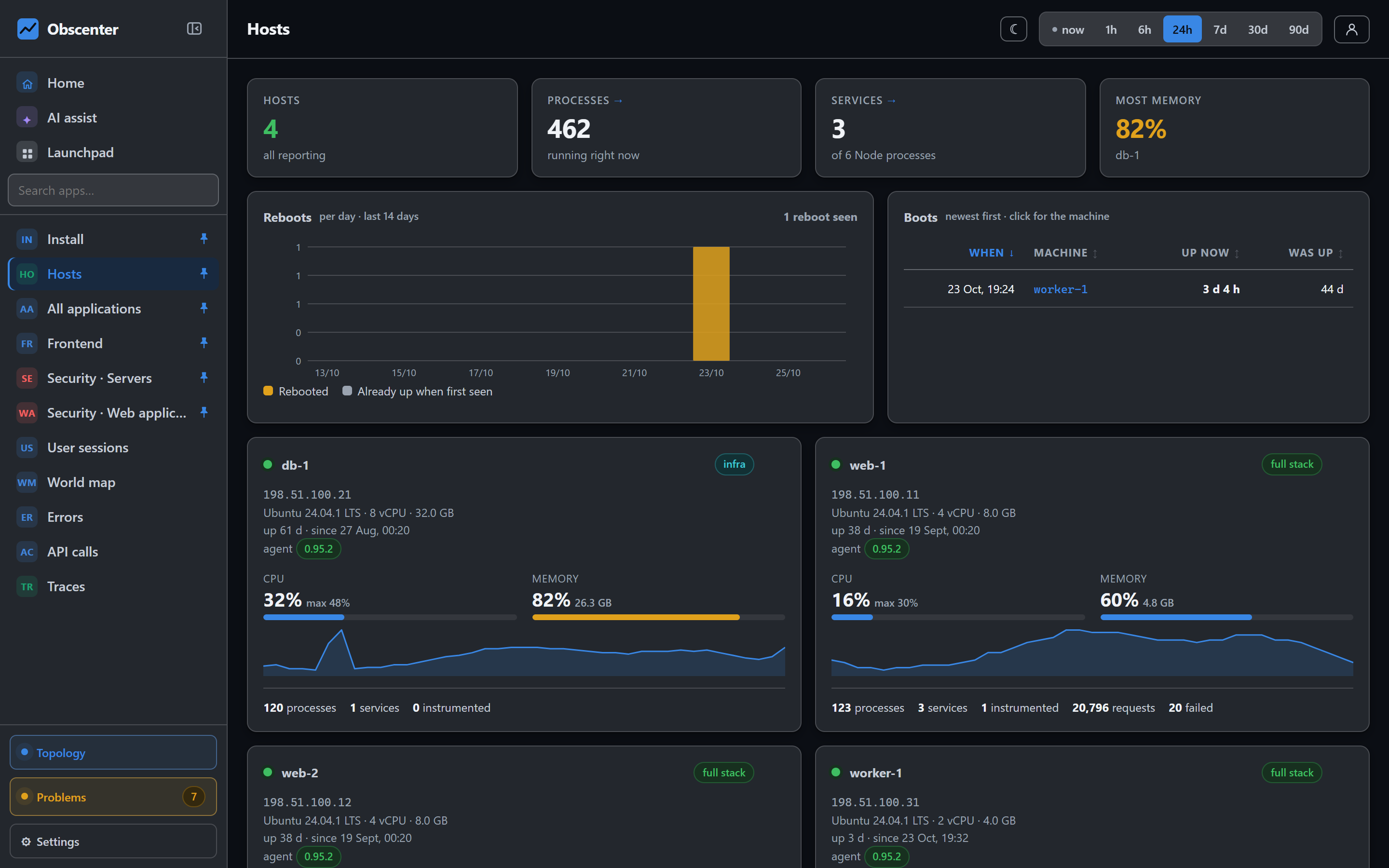
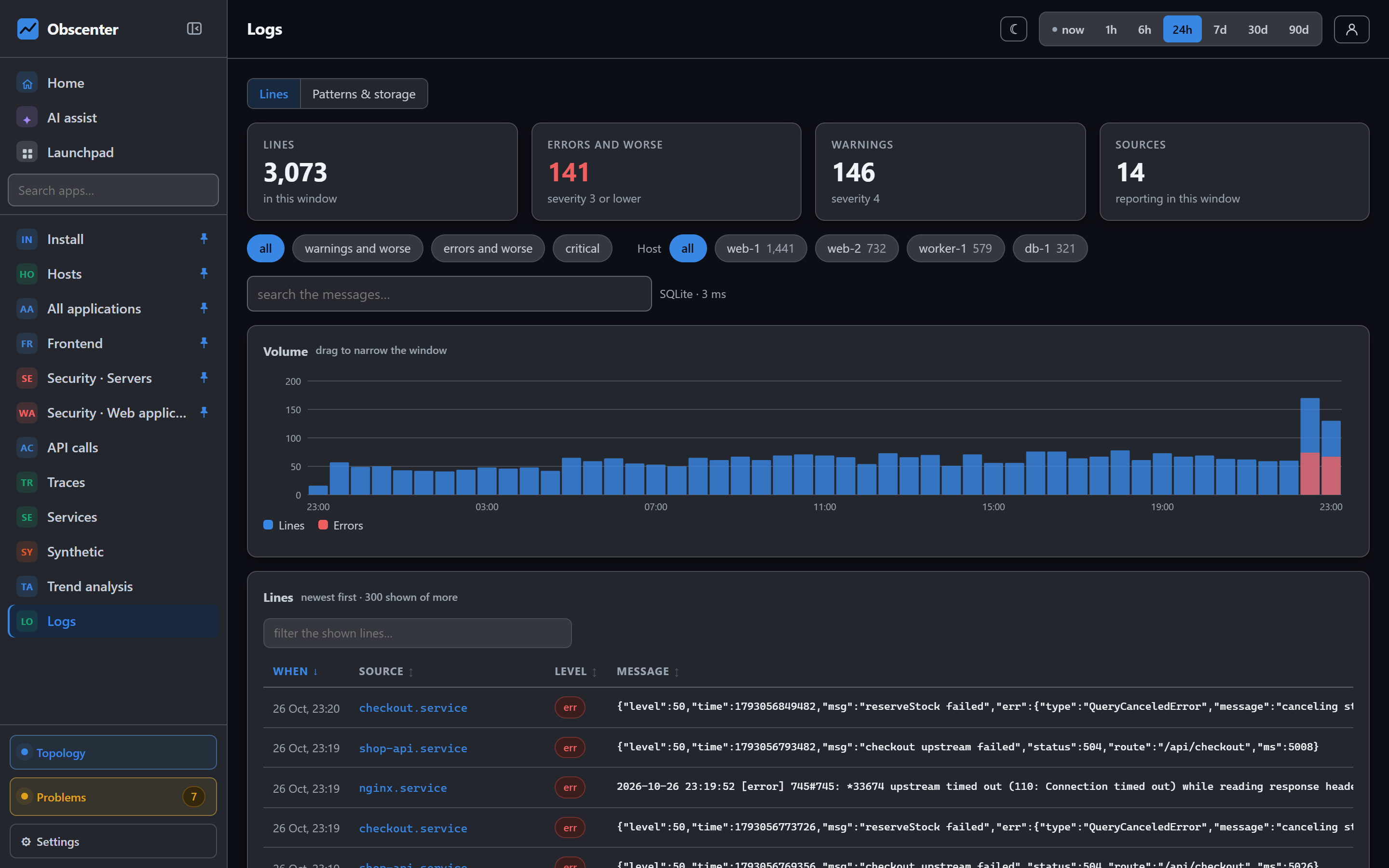
Who has been on these machines records every session: the machine, who opened it, when, how long it lasted, and why it ended. It is deliberately a record and not a transcript. Keystrokes and output are never stored, because a terminal transcript is full of secrets — pasted passwords, environment variables, customer data on screen — and a monitoring database is the wrong place to keep them.
SSH logins to the same machines are recorded separately, from the auth log, with where they came from and whether that place is usual. Between the two, "who was on this box last night" has an answer. See SSH and attack detection.
Containers and Windows
An agent inside a container cannot open a shell; the console suggests the machine under it instead, if that machine has a host agent. The Windows agent has no console.
From the ticket to the fix, in one browser tab
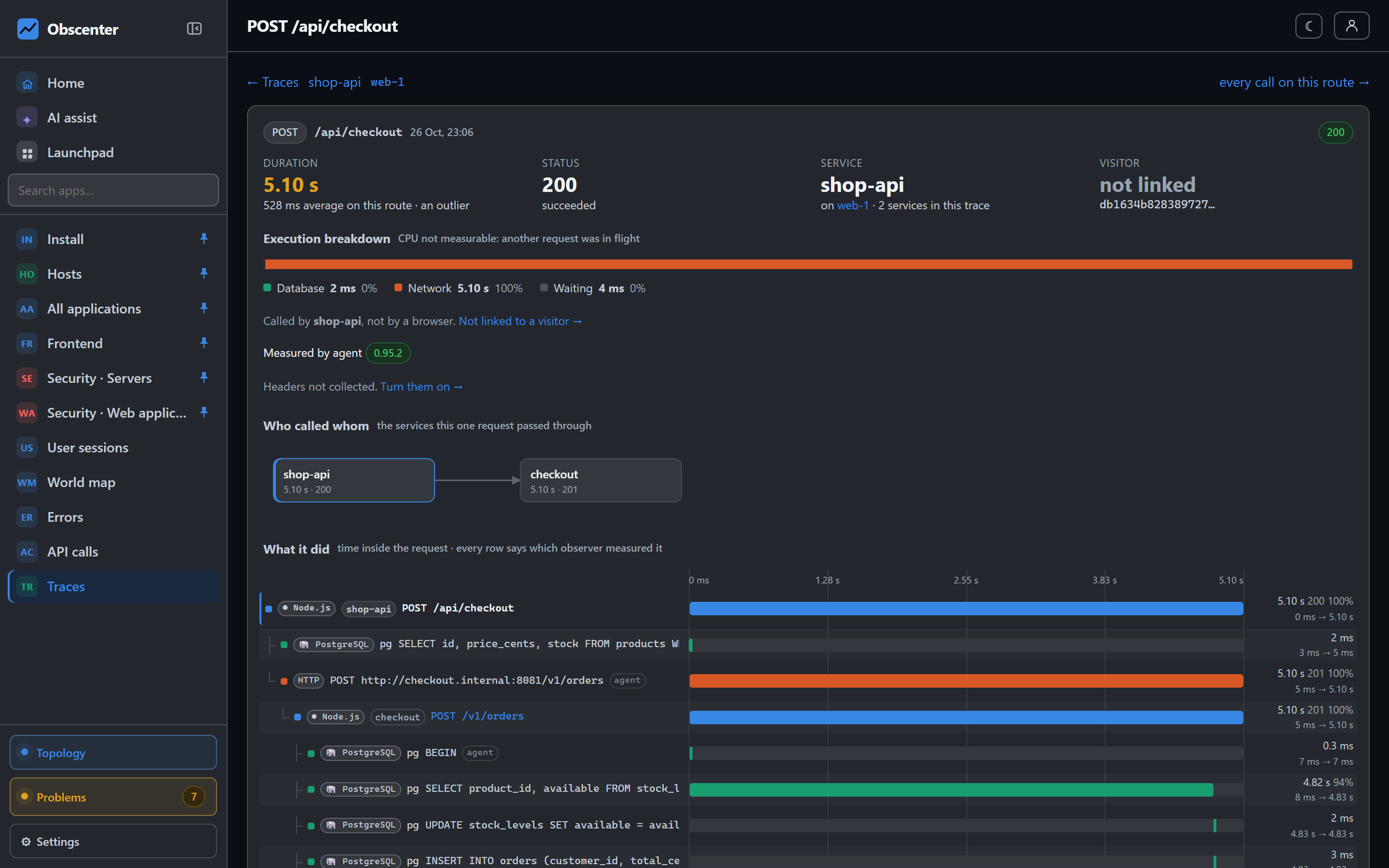
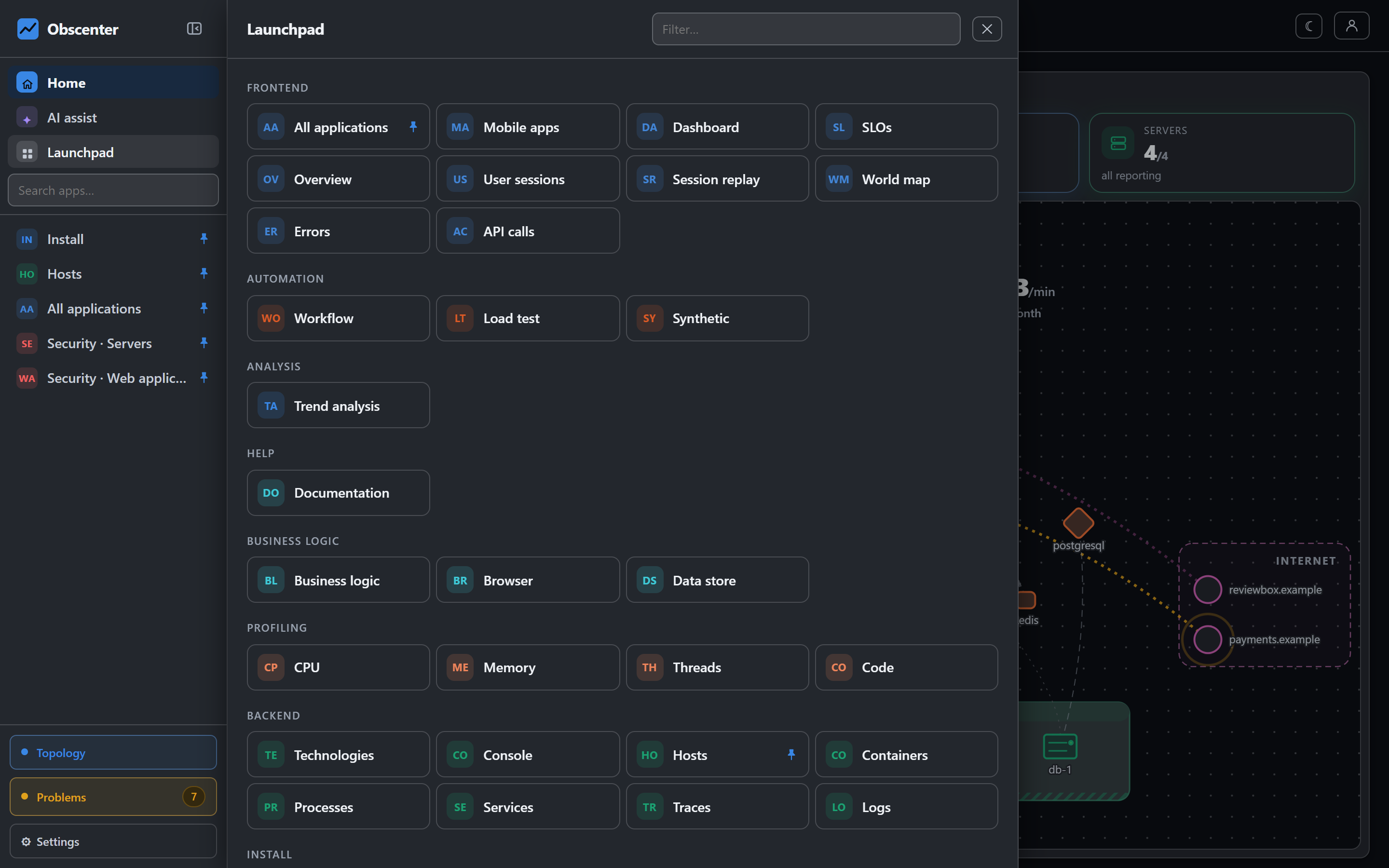
Put together, an incident on a machine reads like this. A ticket opens because the order worker stopped reporting. The ticket names the machine it runs on, and its timeline shows whether that machine rebooted or a deploy happened just before. One click opens the machine's page: CPU, memory, disks and its log lines. From there the console opens a shell. The quick command for failed units shows the worker in a failed state, and the restart command is already on the prompt, waiting for the unit name. You type it and press Enter. The service reports again, and once its measurements have been normal for half an hour the ticket closes itself and records how long it lasted. The audit records that you opened a session, on which machine, and for how long. Nobody had to find a VPN client.
Why not just SSH?
SSH is the right tool when you have it. The console is for the moments you do not: a phone at a train station, a colleague's laptop, a machine behind a firewall that only allows outbound traffic. Because the path is the agent's own outbound connection, closing port 22 to the internet entirely does not cost you emergency access — and every scanner guessing at that port has one less thing to guess at.
The reference is Console: a terminal through the agent; who may use it is set under Organisations, teams and roles.
Get a shell where you are
Install the agent on a Linux machine with the root terminal ticked (or run obscenter-agent allow-terminal on one that already has the agent), and the console has an Open button for it.
Start free or read Getting started.