Blog 26 October 2026 · 6 min read
Custom dashboards and an AI assistant that asks first
Pin any chart into dashboards of your own, share them with your organisation, and ask an assistant that reads your data and offers changes as buttons you press.
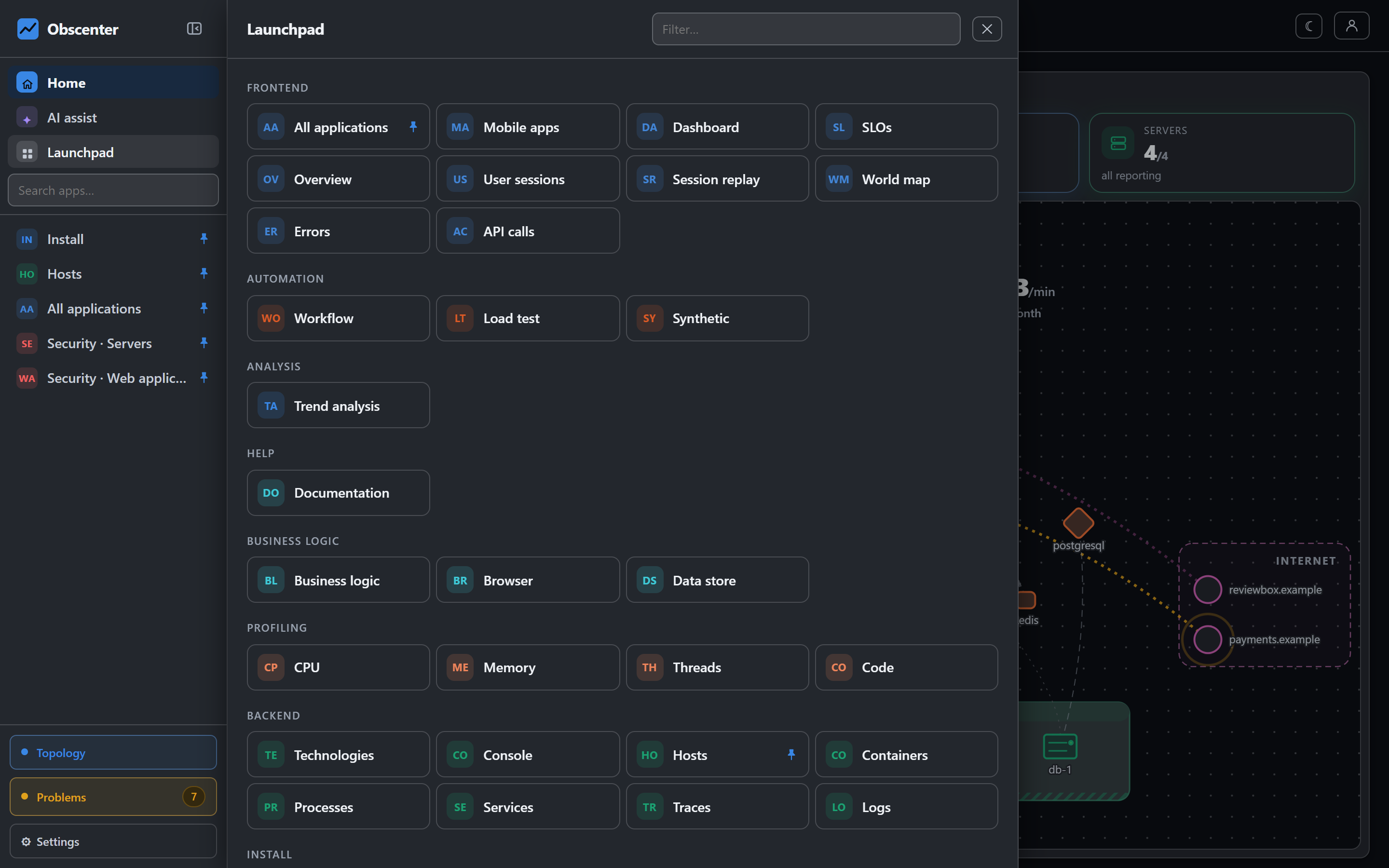
Every team ends up wanting one screen: the checkout service's latency, the database machine's memory, the health check's availability, the payment API's error rate — side by side, for the person on call. And every team eventually wants to just ask: "what got slower since yesterday?"
Obscenter has both. Dashboards are built by pinning charts from the pages they already live on. The assistant answers from your own install's data, under your own access, and never changes anything until you press a button.
Dashboards: pin any chart
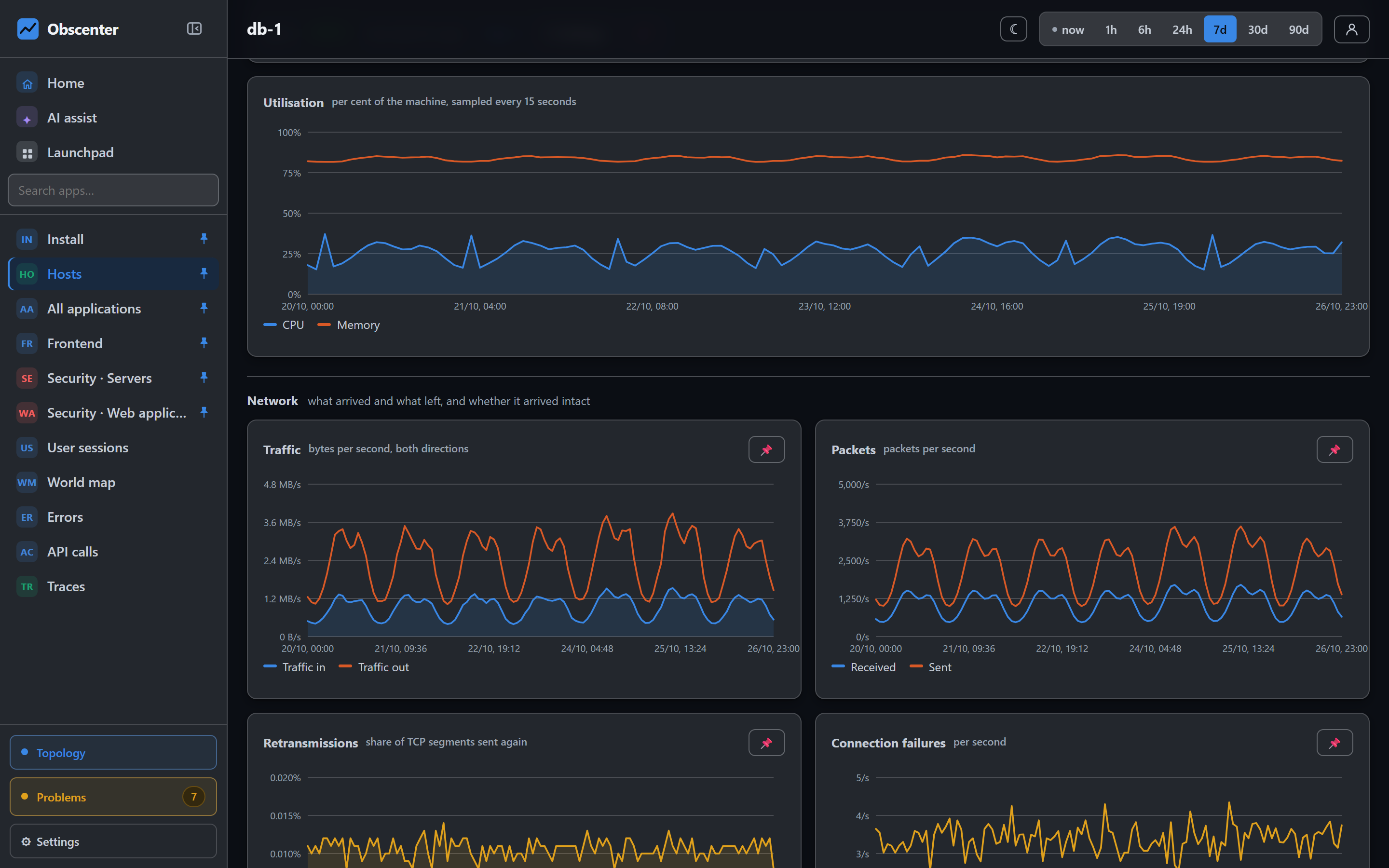
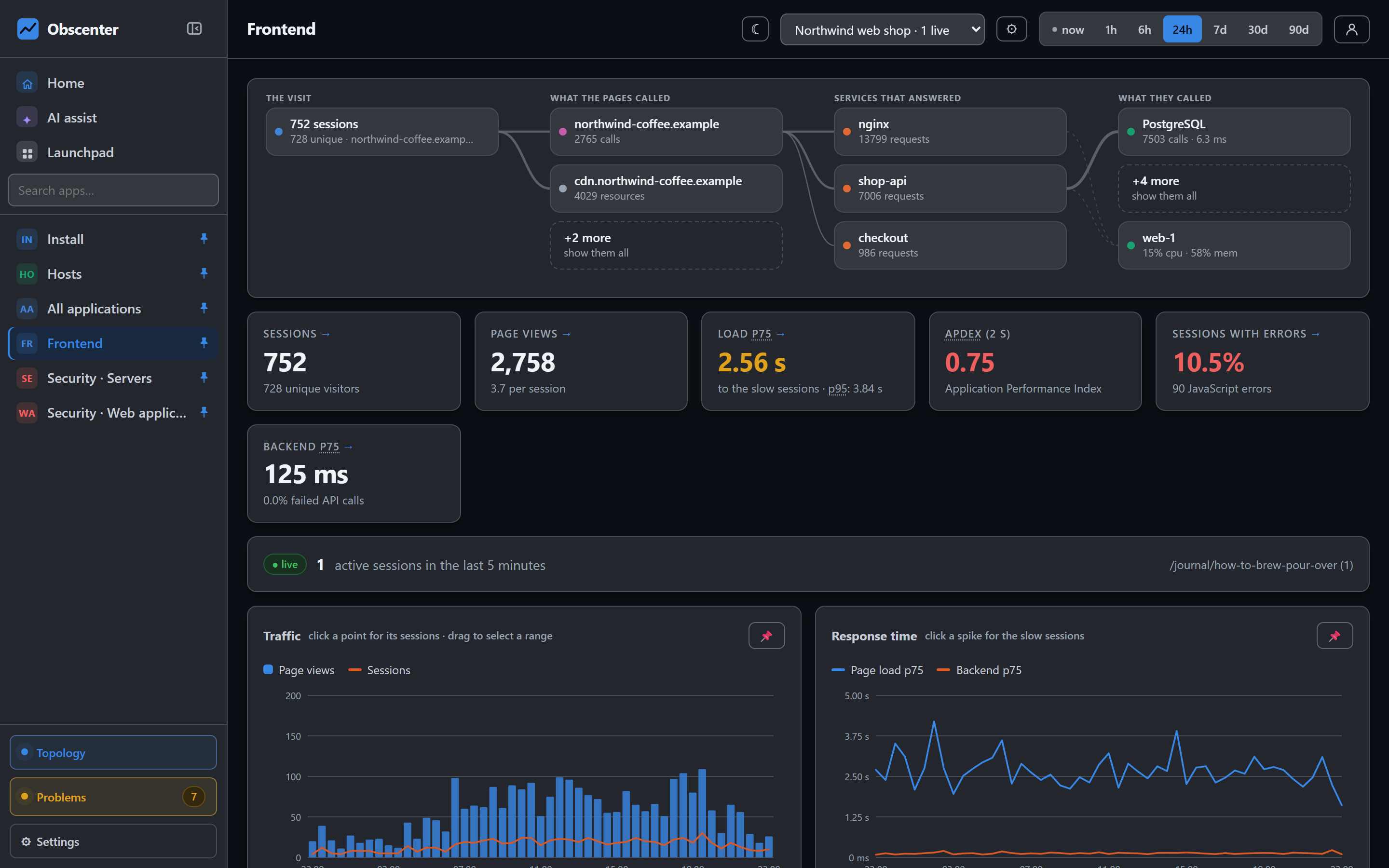
A dashboard is a board of charts you put together yourself. You do not build a query; you pin. Press the pin on a host's, a service's, a synthetic check's, an application's or a database's chart, and it lands on your board.
A pin is a reference, not a copy. It redraws from its source page's own data every time, so it is always current and always means what it meant where you found it. If its source is gone — a host decommissioned, a check deleted — the card says so rather than showing an empty chart.
Several boards, private or shared
- Up to 50 boards per person, switched with chips above the board.
- Each board is private or shared. A shared board is visible to the members of your organisation, labelled with your name — the on-call board, the launch-day board, the database board.
- Only the owner can rename, share, unpin from or delete a board.
- Every card has open →, back to the page it came from.
Sharing never widens anybody's access. On a shared board, a reader does not see pins for things their own account cannot open.
What to put on an on-call board
A good on-call board answers "is it us, and where" in one screen. A pattern that works:
- the application chart of your most important site — traffic and response time, so a drop or a spike is the first thing you see;
- the services behind it — request rate, latency and errors for the two or three that matter;
- the database those services use, and the host it runs on;
- the synthetic check on your public front door, so the board says whether the site is up even when nobody is visiting.
Because pins redraw from their sources, the board does not go stale when a service is redeployed. Share it, and the whole rota sees the same screen.
The AI assistant: answers from your install's data
AI assist opens a panel beside whatever page you are on. Ask in your own words, in your own language: "Which services got slower since yesterday?", "What is wrong with web-1?", "Show me replays of sessions that failed at checkout."
The assistant answers from tools that read your install, under your account's access. It cannot see anything you could not open yourself; if an answer needs access you do not have, it says so and tells you to ask an administrator. Its tools read:
- open problems and a ticket's context;
- applications, machines, services and dashboards;
- traffic, machine health and machine usage;
- logs, recent calls and replays;
- synthetic checks and error budgets;
- database load and the security overview;
- IoT devices, mobile crashes from Sentry, and workflows;
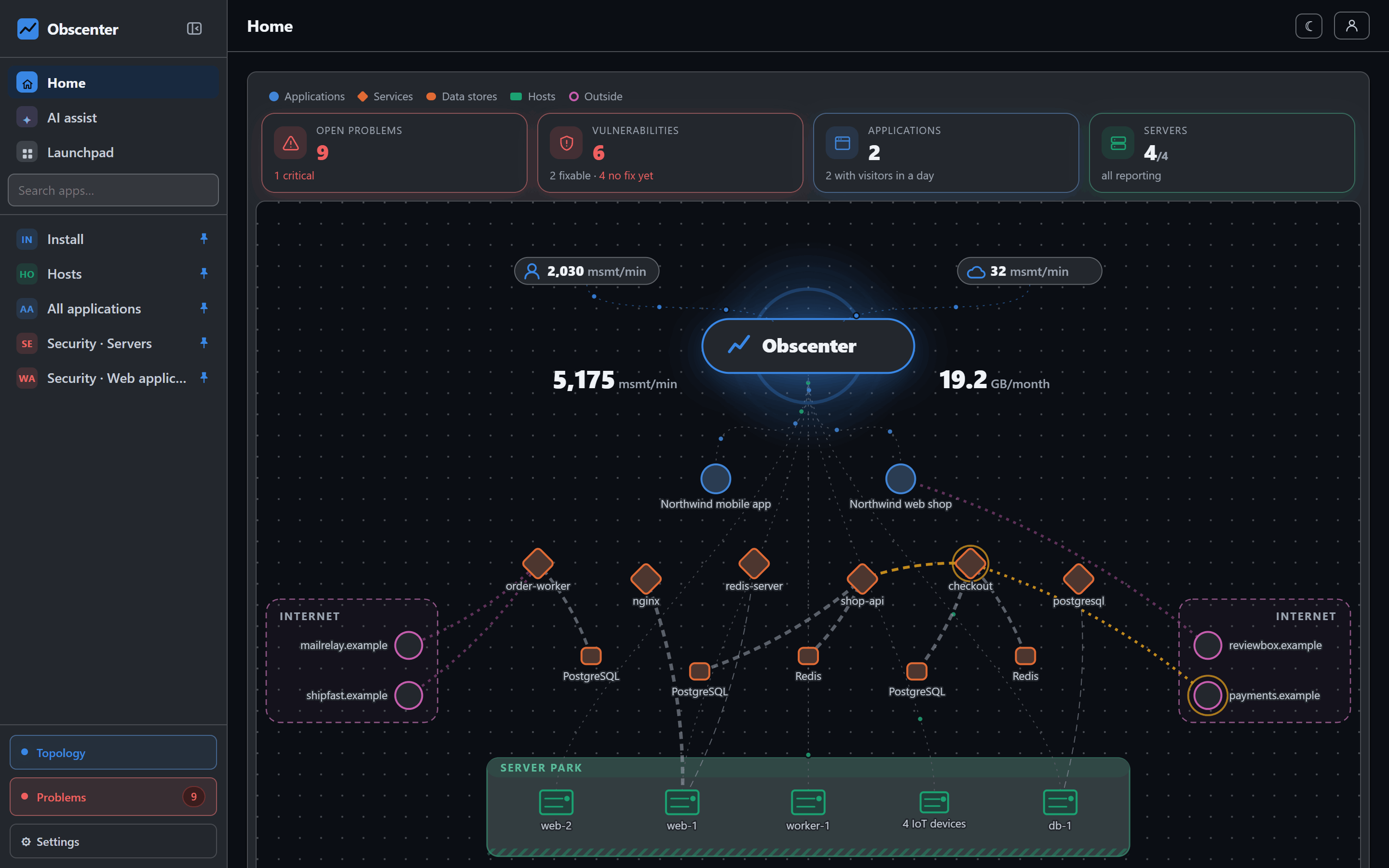
- the data flow, technologies, and where things are.
Each tool needs the matching capability: without the Security capability, for example, it cannot read the security overview.
Every answer is checked against the data
A model can get the facts right and the first word wrong — "yes" followed by a paragraph that means no. So every draft answer is handed back once, beside the tool results it was written from, with one job: make every number, name, date and yes-or-no match what a tool returned, and change nothing else. The review may not call a tool or add a fact. If it fails, you get the draft rather than nothing.
Changes are buttons you press
The assistant never changes anything by itself. When a change would help, it offers a button whose text says exactly what will happen, and nothing happens until you press it. Today it can offer to:
- create a dashboard, private or shared with your organisation;
- pin a host or a service to one of your dashboards;
- set an application's two slow lines — "fine up to" and "critical above" — which the problem engine uses for latency tickets. This one needs the Install capability.
The proposal travels back to the server as data and is checked again when you press it, against the same capability the page that does it would ask for. A button in a chat window is input like any other.
What leaves your install
The assistant needs a language model, configured by the install's administrator: the Anthropic API or an OpenAI-compatible endpoint, with a key the administrator provides. Its answers are built from your data, so when it searches logs, the matching log lines are part of what is sent to the model — keep that in mind before pointing it at an install full of personal data. It is for signed-in people only, never for API keys.
The assistant is separate from detection. No model decides whether something is wrong, ranks tickets or suppresses one; the problem engine is arithmetic on stored rows, and a model can only explain a ticket afterwards.
The reference is Dashboards and the AI assistant.
Build your on-call board
Pin the four charts you open first during an incident, share the board, and ask the assistant what changed since yesterday.
Start free or read Getting started.