Blog 26 October 2026 · 6 min read
Server log monitoring: journald, files and log patterns
Collect systemd journal units and log files from every host, see which sources are worth it, filter by level, and drop noise by pattern at the collector.
Logs are where an incident's story is written in the system's own words: the upstream that timed out, the transaction that waited on a lock, the process that restarted. They are also where most of the storage goes, most of it spent on the same health-check line repeated eighty thousand times a day.
Obscenter collects logs with the same host agent that measures the machine, offers you the sources worth having instead of collecting everything, and lets you decide what to store by pattern rather than by grepping regular expressions.
Where the agent looks for logs
- systemd units, read from the journal with a cursor;
- system logs under
/var/log; - PM2 application logs in PM2's own log directories, which are never under
/var/log; - deploy directories — a
logs/orlog/folder under/opt,/srv,/var/wwwand home directories.
It is not a crawl of the filesystem. The roots are listed and checked for existence, symbolic links are not followed, and rotated or compressed copies are skipped. A monitoring agent running as root has no business wandering through somebody's documents. On Windows, the agent reads the event-log channels you name for that machine.
Offered, not collected: which logs are worth switching on
Nothing is collected until you choose it. A stock Ubuntu machine offers dozens of files and hundreds of units, most of them housekeeping, so the agent classes each source as app, web, system or unit, with its size and when it was last written. Sources written in the last day that look like your own software go into a Worth switching on box at the top, with one button to collect them all. Security logs such as auth.log are always suggested, because a quiet auth log is the good case and you want it on before it stops being quiet.
Reading and filtering
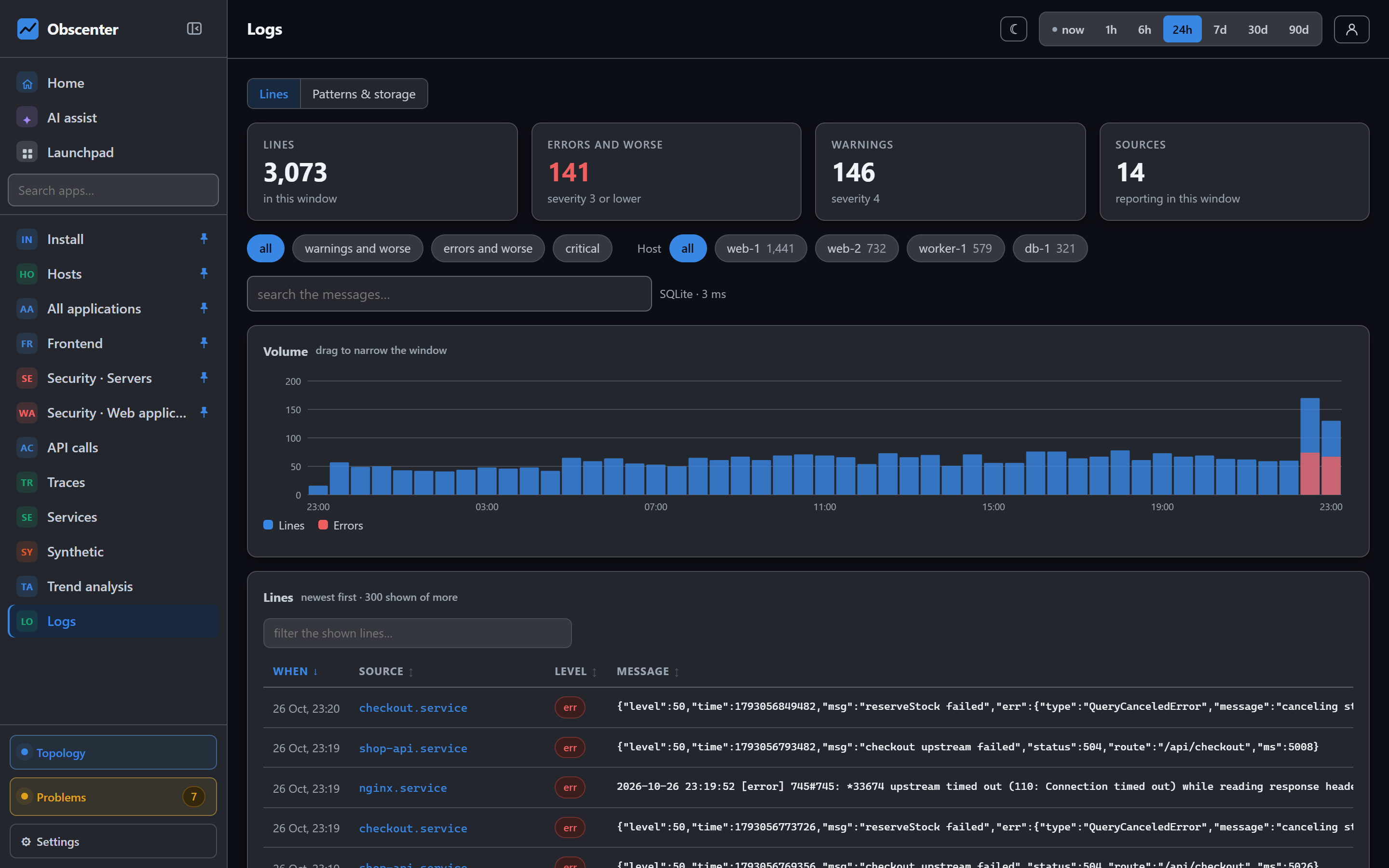
The logs page shows the lines, the errors and warnings, how many sources reported, and the volume over time — drag across the chart to narrow the window. Filter by level (all, warnings and worse, errors and worse, critical), by host, and search the text. Lines with no level are counted separately rather than guessed. A badge says which store answered the search and how long it took.
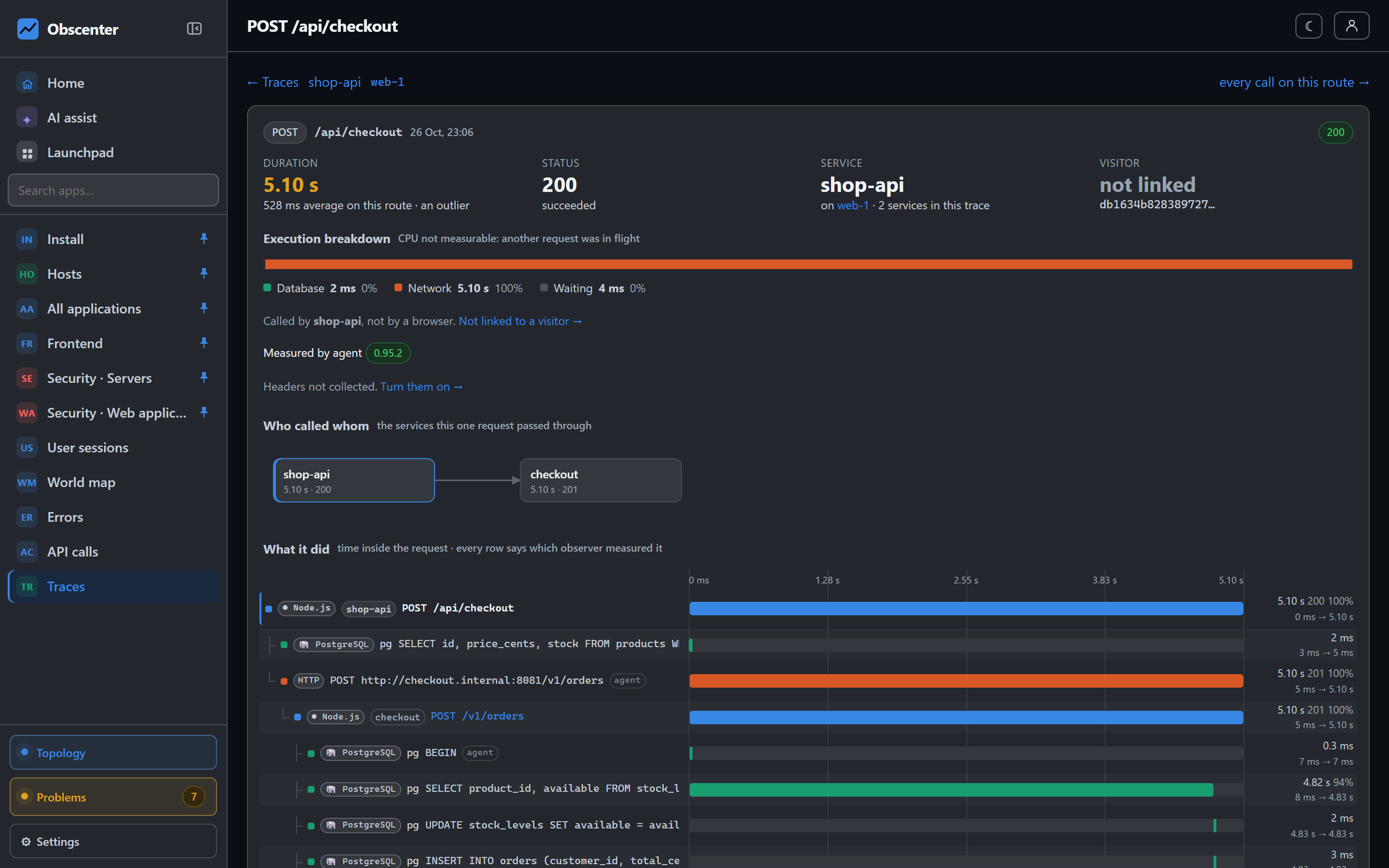
Logs are also where the rest of the product looks. A machine's page shows its own lines. When the setting is on, the log lines a traced request wrote appear inside its trace. And the problem engine counts error log lines from instrumented services as part of the exceptions detector.
Log patterns: decide what to store by sentence
Most log volume is the same few sentences with different numbers in them. The Patterns & storage tab reduces each line to its pattern: the sentence with numbers, ids, addresses and times replaced by <*>. Each pattern shows its kind — error, security, access, health, debug, periodic, lifecycle or other — how many lines it had, how many were not stored, a sample, a proposal and your verdict.
- Pick a mode: store everything except what I drop (the default), or store only what I choose to store.
- Noise is proposed for dropping; errors, security and access lines are proposed for keeping. Mark each pattern keep or drop.
- Keep every line at error level or worse is on by default, whatever a pattern says.
- SSH and auth lines, and access-log GET lines, are always stored, because the security pages read them.
Dropping happens at the collector, not on the machine. The agent still sends the line; the collector counts it and keeps one sample per pattern per day. So a pattern dropped by mistake can still be judged later, and you can see exactly what dropping it saved.
Who decides what is collected and stored
Sources are switched on and off per machine, on the host's settings page, so the database server can send its PostgreSQL log while the web servers send nginx and the application. To see what a machine would offer before you open the dashboard, run node /opt/obscenter-agent/discover.cjs --sources on it. Changing a pattern's verdict is for administrators, because dropping a sentence changes what everybody reading those logs will find. A member can read the lines from machines their account may see, and nothing from the others.
How long logs are kept
Two limits apply to the whole install, and the tighter one wins: keep logs for 7 days by default (1 to 365), and never more than 1024 MB by default. A whole-install ceiling across all data can be set as well. On a larger install, logs can be stored in ClickHouse beside SQLite; the page reads the same rows either way.
Logs feed the security views
Three security views read the logs the agent collects: auth.log or the SSH journal feeds SSH logins and brute-force detection, nginx and Apache access logs feed the map of who is scanning your servers, and the Windows Security log feeds logons. Switching on the suggested sources is what fills them in. See SSH brute force and attack detection.
nginx access logs with timings
An nginx access log in the default format has no request time in it. The agent can add a second access log at http level, in a format it can parse, so requests served by nginx — PHP, Python, static files — get timings too. Your existing logs keep writing exactly what they wrote before, and removing one file puts the machine back.
The reference is Logs and log patterns; the agent that collects them is described in The host agent.
Collect the logs that matter
Install the agent, open the machine's settings, and press the one button in Worth switching on.
Start free or read Getting started.