Blog 26 October 2026 · 6 min read
Incident workflow automation when a problem opens
When a problem opens: branch, wait, look things up, ask a model, write the message, call a webhook or send mail. What runs today, and what does not yet.
A notification tells someone a thing happened. Most incidents then start with the same three minutes of manual work: look up when the last deploy was, check whether the machine underneath is fine, write a summary in the team channel, open a ticket in the tracker. Workflows do those minutes for you, the moment a problem opens.
This article describes what Obscenter's workflow editor does, and is precise about which parts run today.
What runs today: the "a problem opens" trigger
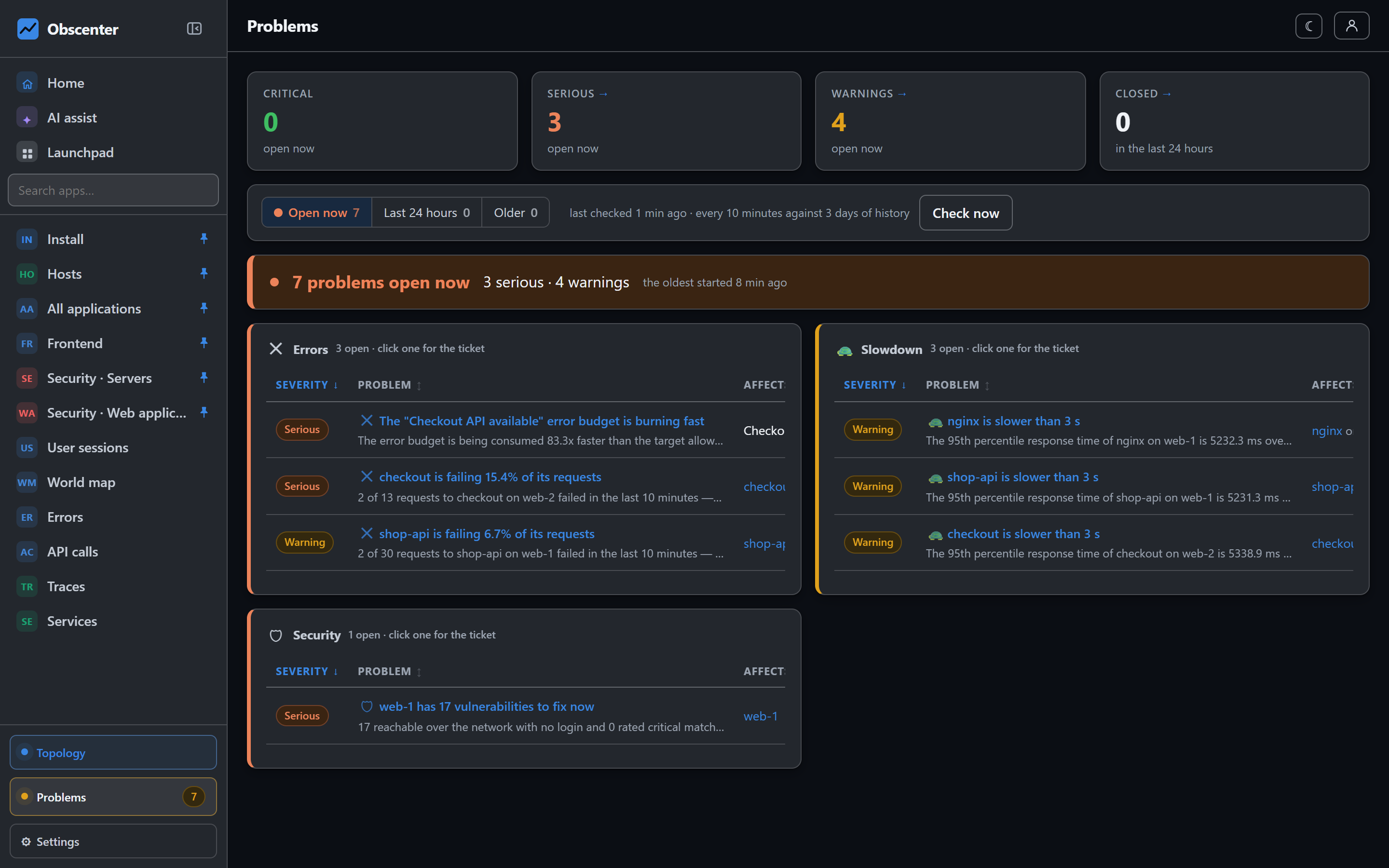
A workflow is drawn as a trigger followed by steps and actions joined by lines. Today, one trigger starts runs: a problem opens. You narrow it with filters:
- at least this severe — serious by default;
- only this kind of problem;
- only about a service, a host, an application or a database, and optionally only one of them;
- title or summary contains;
- also when an old one comes back — off by default.
Workflows do not run for a machine in maintenance, and only the ticket's own organisation's workflows run for it.
Steps: branch, wait, look up, ask a model
| Step | What it does |
|---|---|
| If | Compares a value with =, ≠, >, < or contains, and continues on yes or no |
| Do both | Splits into two branches |
| Wait | Pauses for up to 60 minutes — useful for "if it is still open in ten minutes, then…" |
| Add a value | Stores something for later steps |
| Look something up | Adds the service, the host, the last deploy or the open problems |
| Ask a model | Sends your prompt to the model configured for workflows. Only the prompt is sent |
| Write the message | Composes the text the actions will send |
A waiting run is held in memory, so restarting the install drops it. That is stated rather than hidden: a workflow that must survive restarts should not lean on a long wait.
Actions: a webhook or an email
- Send a web request — POST, GET or PUT to your URL, with a ten-second timeout. That is how a workflow reaches a chat tool, an issue tracker, a status page or your own automation. Private addresses are refused, except for workflows of the install's own organisation.
- Send an email — through an email channel. On the hosted service's shared mail server, it may only write to members of your organisation.
Templates: the ticket's own values
Text fields can use the ticket's values — title, severity, kind, summary, cause, evidence, host, application, peak, when it opened, and its URL:
{{problem.title}} {{problem.severity}} {{problem.cause}} {{problem.url}}A name that has no value in a run is listed in that run's trace, so a typo shows up instead of quietly sending an empty field.
An example: deploy-aware incident summaries
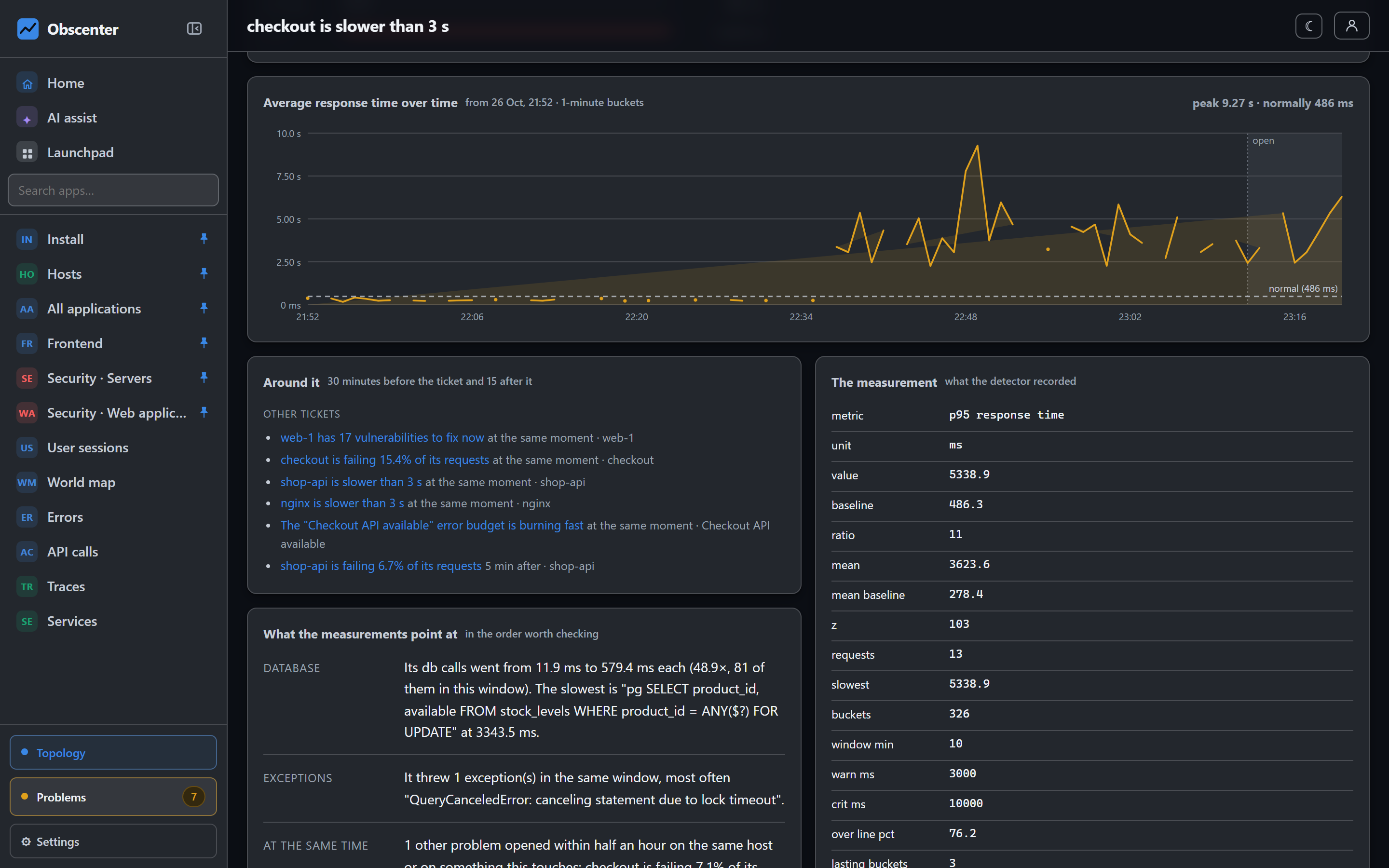
- Trigger: a problem opens, at least serious, only about the
checkoutservice. - Look something up: the last deploy.
- If the deploy was in the last half hour: ask a model to summarise the ticket and the deploy in two sentences.
- Write the message from the title, the model's answer and the ticket's URL.
- Send a web request to your chat or ticketing system.
Deploy markers come from one curl in your CI pipeline, posted with the application's key, so "was there a deploy?" is a fact the workflow can look up rather than a question someone asks in the channel.
Test runs and the run log
Test run runs the workflow against the most recent real ticket that matches it, and it sends for real. If no ticket matches, it uses an invented ticket that says it is one. Every run keeps a trace of what each step decided, and the editor lists the last runs — which is how you debug a drawing. A run stops after 60 steps in case the drawing loops, and a drawing can have up to 60 nodes.
Workflows or notification policies?
Notification policies are described in root cause analysis instead of alert fatigue, together with the ticket itself. Use a notification policy when the job is "tell these people, on these channels, about these tickets" — with repeat windows, closures and escalation built in. Use a workflow when the job needs a decision, a lookup, a wait or a model in the middle, or a system that is not a chat channel. They work side by side; a ticket can be routed by a policy and handled by a workflow at the same time.
Who may build them
Workflows need the Automation capability, which is off by default for members; an organisation's administrators turn it on per account. The model used by "ask a model" is chosen by the install's administrator, as the model that holds the workflow job.
The reference is Workflows; what opens a problem in the first place is in How problem detection works.
Automate the first three minutes
Start with one workflow: a serious problem about your most important service, the last deploy looked up, and a message to your team's channel.
Start free or read Getting started.