Docs Frontend
Frontend overview and Core Web Vitals
The Frontend overview for a website: sessions, page load p75, Apdex, Core Web Vitals monitoring with LCP, INP and CLS, error rate and application settings.
Launchpad → Frontend → Frontend is the first page about a website. It answers one question: how did real visitors experience the site over the range you picked? Each number on it leads to the sessions behind it.
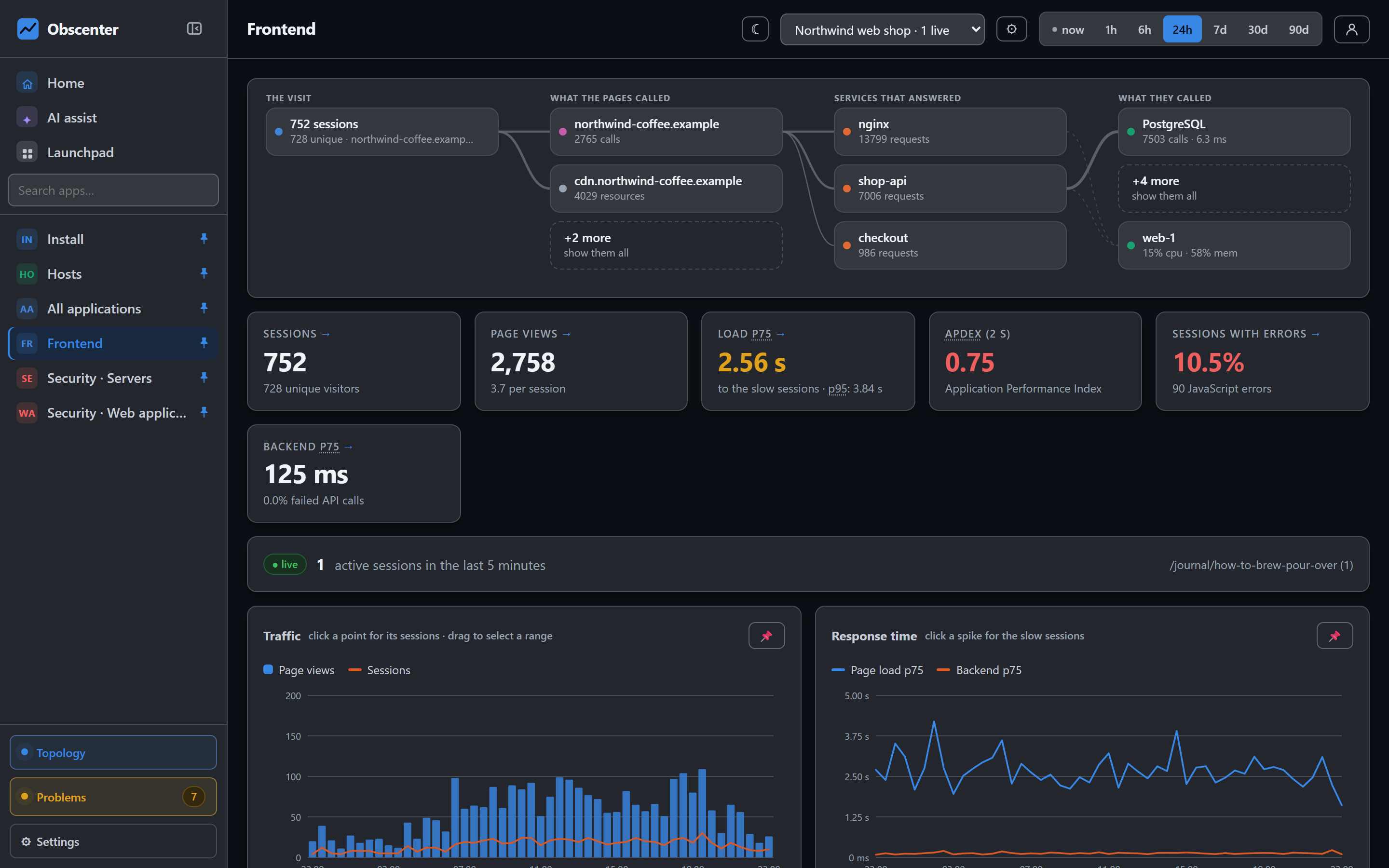
The tiles
| Tile | What it shows |
|---|---|
| Sessions | Visits in the range, with the number of unique visitors. |
| Page views | Views, and views per session. Single-page app route changes count as views. |
| Load p75 | Three visitors in four had a page load faster than this. Amber above 2.5 s, red above 4 s. p95 sits underneath. |
| Apdex (2 s) | Satisfaction from 0 to 1: loads within 2 s count fully, loads within 8 s count half. Good from 0.94, fair from 0.85. |
| Sessions with errors | The share of sessions that hit a JavaScript error. Amber above 2%, red above 10%. |
| Backend p75 | The response time of the calls the pages made, with the share that failed. |
A live card shows who is on the site now: sessions active in the last five minutes, and on which pages.
Core Web Vitals
The vitals are measured in the visitor's browser, on their device and connection. They are not lab numbers. The card shows the 75th percentile of each, the same figure Google uses, and how the views split into good, needs improvement and poor:
| Vital | What it measures | Good | Poor |
|---|---|---|---|
| LCP | When the largest image or text block appeared | ≤ 2.5 s | > 4 s |
| INP | Time from an interaction to the next paint | ≤ 200 ms | > 500 ms |
| CLS | How much the layout jumped (a ratio, not a time) | ≤ 0.1 | > 0.25 |
| FCP | When the first content replaced the blank screen | ≤ 1.8 s | > 3 s |
| TTFB | Time to the first byte of the response | ≤ 800 ms | > 1.8 s |
Click a vital to open the sessions that had a poor value for it. LCP is stored with the selector of the element that was largest, so you can see which image or heading to fix. Percentiles are computed over the views that have the value. Route changes in a single-page app have no load time, and they do not pull the p75 towards the median.
Abbreviations across the dashboard are underlined with dots. Hover one for its full name. The overview also ends with a folding glossary.
Poor vitals are watched: the detection engine opens a ticket when a page's p75 is poor for one visitor in four. See Visitor experience.
Charts and breakdowns
The charts show page views and sessions, page load and backend p75, and JavaScript errors. They also carry deploy markers posted by your CI (see Deploy markers). Every chart drills down. Click a bar for the sessions in that bucket, or drag across a stretch to select a window. Clicking the peak of the response-time chart opens the slow sessions of that period.
Below the charts are the most visited pages, the most frequent errors, data transferred, and breakdowns by browser, operating system, device type, country, screen resolution, language and referrer. Each bar opens the sessions of its segment.
Application settings
The gear beside the application picker opens Application settings:
- Name.
- Allowed origins (empty = any): hosts that may send beacons with this key, for example
*.example.com. - Sampling: what share of visitors is measured, from 0.1% to 100%. Sampling sticks to a visitor.
- Raw data retention (days): 1 to 3650, by default the install's 30. Hourly aggregates are kept much longer, so long-range charts survive. See Data, retention and backups.
- Session timeout (minutes): 30 by default.
- How slow is slow: Fine up to (3 s by default) and Critical above (10 s by default). These two lines decide when a slow service behind this application opens a ticket.
- Session replay: the share of visitors recorded, Recording retention (days), and for a mobile app What is recorded. See Session replay.
- Page sections and Session attributes: up to ten rules each, for the parts of a page worth timing and the values worth reading off the page, such as a user name. See Session attributes.
- Backend correlation: which origins receive a
traceparentheader (same-originby default), and whether abaggageheader names the visitor and session. - Collection enabled: switch it off and the collector refuses this key.
- Hide from the applications list: the tile disappears and nothing else does.
- Tag to paste, with options and the JavaScript API.
- Rotate key: a new key takes effect immediately, so the tags already on your pages stop reporting until you replace them.
- Delete application.
The application list, Frontend → All applications, shows a tile per application with its headline numbers over the last day. Mobile apps shows the same list for apps.