Docs Frontend
World map
See where your visitors are on a map coloured by sessions, load p75, Apdex or errors, zoom into a country for regions and cities, and drill to sessions.
Frontend → World map shows where your visitors were and how the site performed for them there. Every country, region and city on it leads to the sessions behind it.
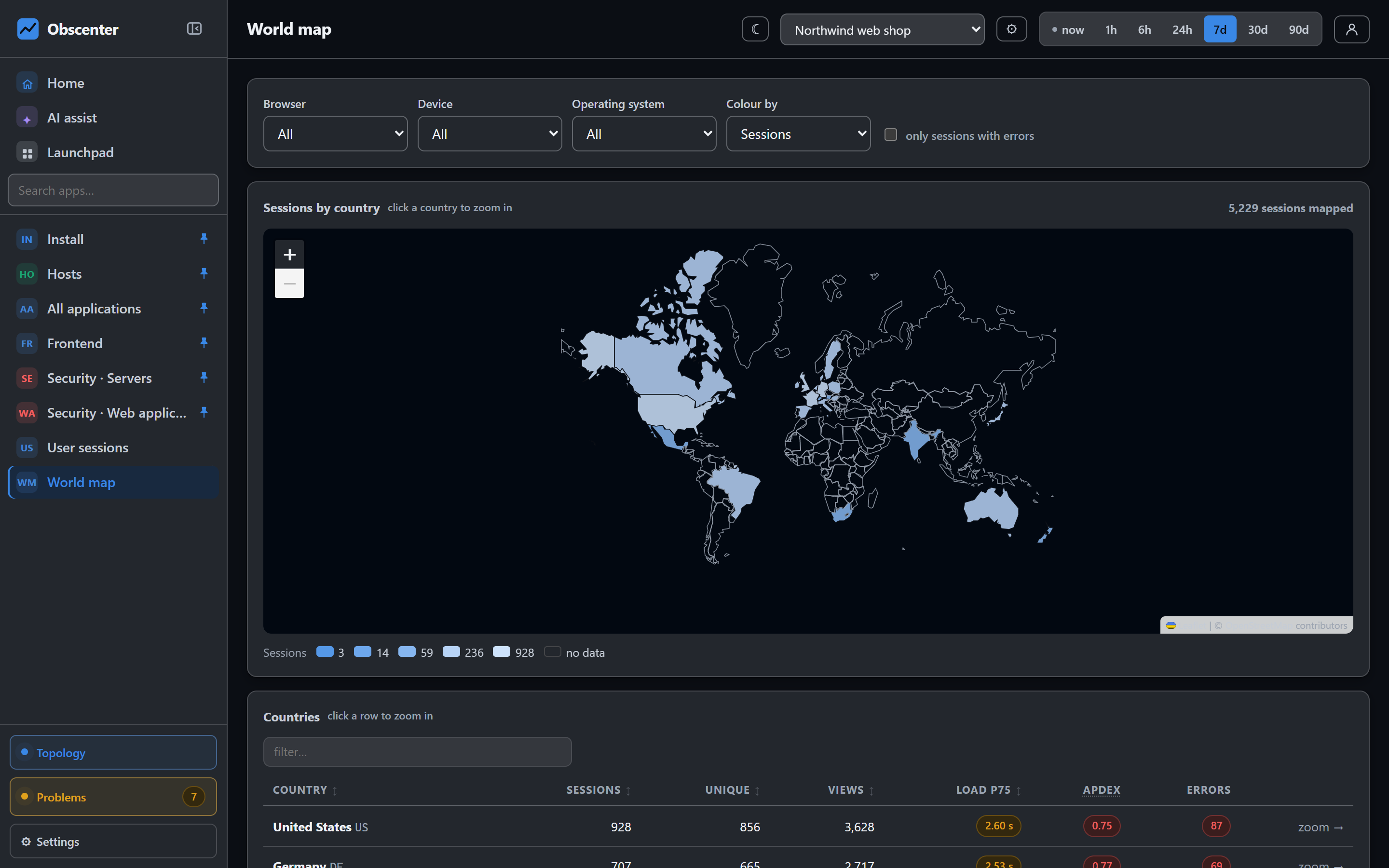
Colour by
Choose what the colours mean:
- Sessions, Unique visitors, Page views or JavaScript errors. Counts use a logarithmic six-step scale, otherwise one or two countries would wash out all the rest.
- Load p75: a linear scale from the fastest to the slowest country actually measured, from green to red.
- Apdex (2 s): the same scale the other way round, because higher is better.
The quality scales use the same thresholds as the Web Vitals cards, so a colour means the same thing everywhere in the dashboard.
Filters
Narrow the map to one browser, device or operating system, or to sessions with errors. The filters carry into the drill-down. If you filter to Safari and click the United States, you get the American Safari sessions.
Countries, regions and cities
Click a country to zoom in. The rest of the world fades, and regions and city bubbles appear. A bubble's size follows the number of sessions, and its colour follows the metric you chose. A table under the map lists the countries, or the cities once you have zoomed in, with sessions, unique visitors, views, load p75, Apdex and errors. Every row opens its sessions.
Where the location comes from
- Country: from your reverse proxy or CDN header when one is present (
CF-IPCountry,X-Vercel-IP-Country,X-Geo-Country,X-Country-Code). Otherwise it comes from an IP-to-country table that ships with the install, so no lookup leaves your server. - Region: from the header, or from the bundled region table when it is present.
- City and coordinates: only from headers such as
CF-IPCity, rounded to two decimals, about a kilometre. Without such a header the zoomed view says so, instead of showing an empty table.
Behind a reverse proxy, set TRUST_PROXY=1 so the visitor's address is read from the proxy rather than the proxy's own address being used. The address is used for the lookup and then discarded, unless you set STORE_IP=1. See Privacy and data protection.
The basemap
The map draws with Leaflet, which is vendored and served by your install. By default the background tiles come from OpenStreetMap's community-funded tile server. That means each pan and zoom is a request to it, and it can see which area you are looking at. The tile server's policy is respected: the attribution is visible, and nothing is prefetched or bulk-downloaded. Three settings control it:
MAP_TILES=off                                       # built-in offline vector map, zero external requests
MAP_TILES=https://your-tiles/{z}/{x}/{y}.png        # your own or a paid tile server
MAP_ATTRIBUTION=…                                   # when you change the source
MAP_MAX_ZOOM=12
If the tile server cannot be reached, the map falls back to the offline vector map instead of breaking. For a busy install, use your own or a paid tile server.
Maps elsewhere in the product
The same kind of map appears on a service's page, showing where its callers were. It also appears on the security pages, showing where scanning and SSH logins came from. They follow the same rule: a country and a salted hash are kept, never the address. See SSH logins, Windows logons and scanning.