Docs Backend
Hosts, processes and technologies
Server monitoring in Obscenter: every host with CPU, memory, disk, network and reboots, the processes on it, host maintenance, and the technologies you run.
The Backend pages are about your install's infrastructure, not about one application. A machine serves several sites and outlives all of them. Read from the bottom up, there are three layers: the host, the processes on it, and the services those processes are. Each layer has its own page, and the pages link to each other rather than repeating each other.
Hosts
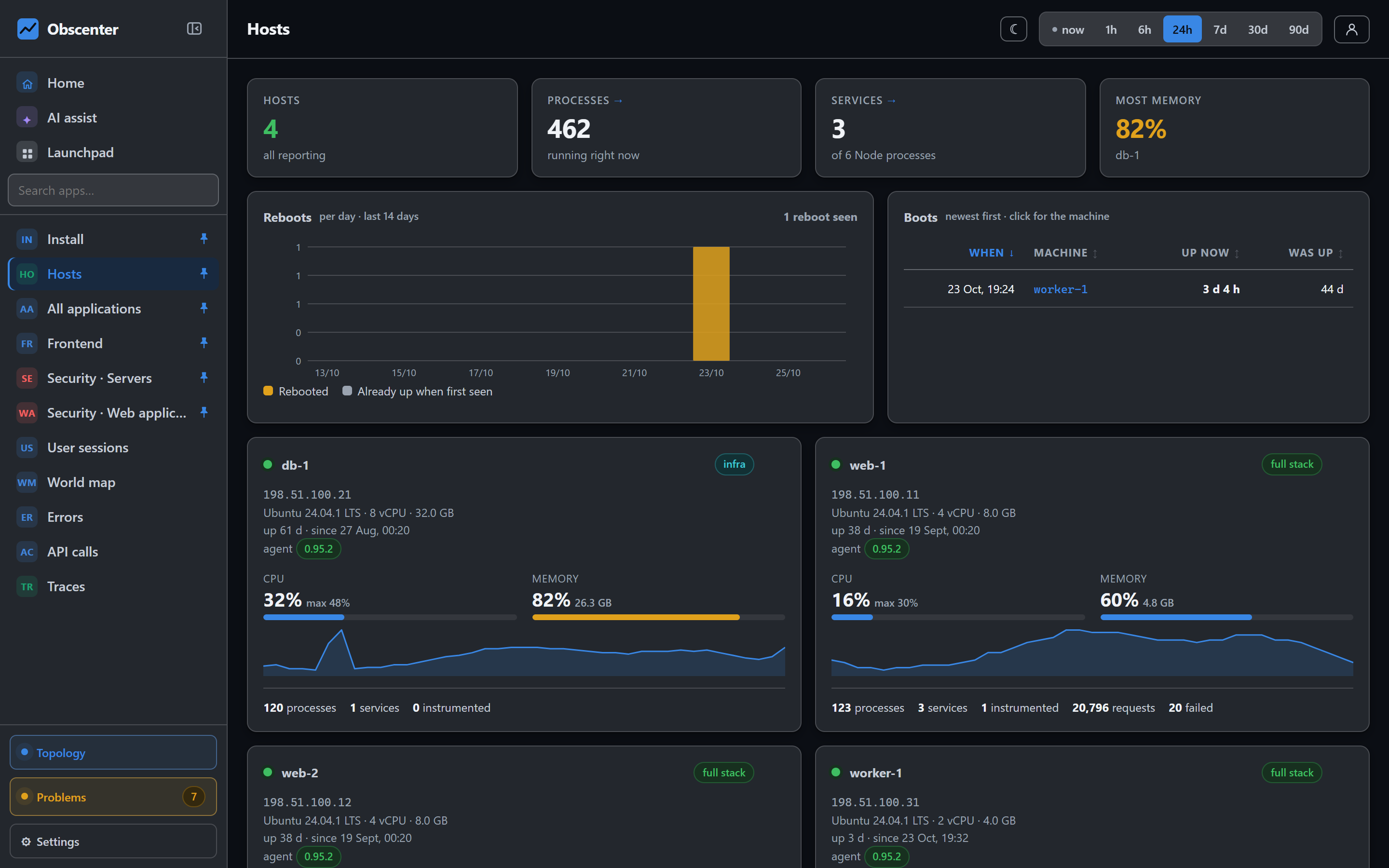
Backend → Hosts has one tile per machine. Each tile shows:
- its status and name;
- badges for maintenance or an offline agent;
- how long it has been up;
- the agent version;
- CPU and memory gauges, a CPU sparkline, and the number of processes and services.
A machine that has not reported for two and a half minutes is shown as stale.
Above the tiles, a Reboots chart counts reboots per day, and a Boots table lists the latest ones. They separate a real reboot from a machine that was already up when the agent first saw it.
Names and labels
A hosting provider's machine name, such as vmi3193168, is hard to read. You cannot change it without the machine registering itself again. So each host carries two names. The hostname is what the machine calls itself and is its identity in every address and link. The label is what you call it, used for display only. Click the pencil beside the name, type the label, and press Enter. Esc discards it. Clear the label and the hostname comes back. Tickets, lists and tiles show the label everywhere.
One host
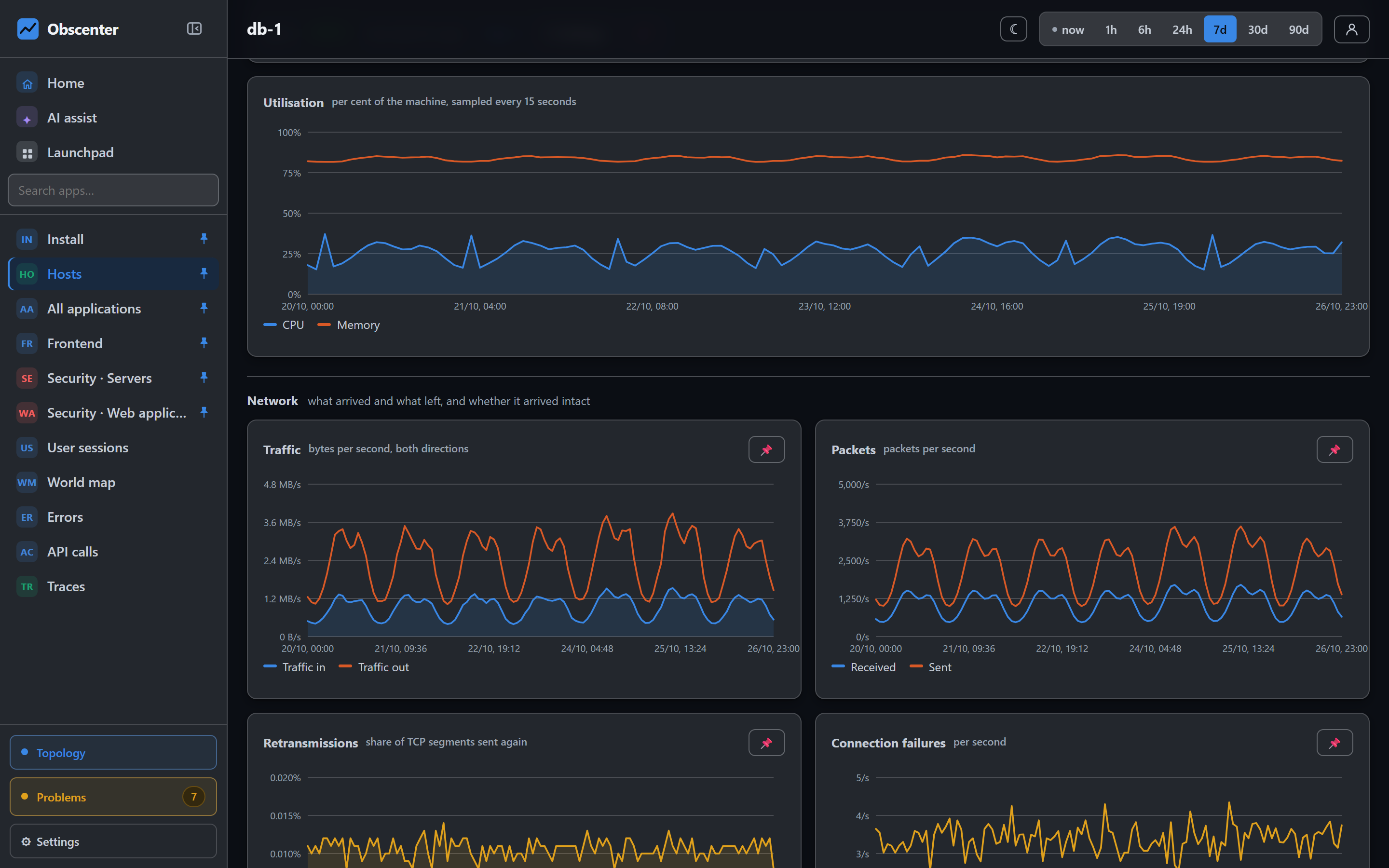
A host's page shows CPU, memory, load, the fullest disk, and its process and service counts. It also shows the operating system and hardware, and the agent line, with an amber note when the machine runs an older agent than your install serves. The charts are:
- Utilisation, sampled every 15 seconds;
- Network: traffic, packets, TCP retransmissions and connection failures, plus What is retransmitting, which names the process behind the network trouble;
- Interfaces;
- Disk: throughput, IOPS and every filesystem;
- Containers on this host: CPU, memory and throttling;
- Memory: used against reclaimable, page faults and swap.
Open to the internet lists the listening ports. You can declare ports to watch: if nothing listens on a watched port, a ticket opens. Requested from here logs the actions the dashboard sent to the agent.
Maintenance
The 🔧 Maintenance button puts the machine into maintenance for 1 hour, 1 day, 1 week, or until a time you choose (at most 90 days), with an optional reason. While it lasts, no mail, webhook, policy delivery or workflow is sent about the machine. Tickets still open and record. Whatever is still open when the window ends is sent then. End now stops it early. See Maintenance windows.
Host settings
The ⚙ on a tile opens the host's settings. It holds:
- the agent, with Update now;
- whether the console may open a terminal here;
- Web sites on this machine, where you can leave a site alone or measure it again;
- Requests through nginx, to collect, update or stop collecting nginx's timed access log;
- the log sources, with Worth switching on;
- the two instrumentation switches;
- Remove this host.
A machine that is still running reports again within a minute after removal. To remove it for good, uninstall the agent first.
Processes
Backend → Processes lists everything running across your machines. For each process it shows the host, kind, PID, CPU now and on average, memory, threads, and when it was seen, with the busiest drawn as time series. One process's page adds disk bytes, and file descriptors against their limit. If the process is instrumented, it also lists the requests it served.
The Traced column shows whether a Node.js process is measured from inside: off, ready · restart it, on, excluded, or "no unit" for a process systemd did not start. The toggle instruments a service and restarts it after asking. See Tracing Node.js services.
A process close to its file-descriptor limit, or one whose thread count keeps growing, opens a ticket.
Containers
Backend → Containers is for apps that report from inside a container. A container cannot see the processor or disks of the machine under it, so this page shows cgroup numbers: memory against the container's limit, the CPU limit and throttling. See Docker, Kubernetes and Coolify.
Technologies
Backend → Technologies answers what your install is built out of, and where. Each technology found has a tile: operating systems, runtimes, web servers, databases and frameworks. The tile shows the versions seen and how many machines, processes and services run it. Opening a tile lists each of those, linked to its own page. A technology appears only with evidence: the operating system, a process, a loaded package, or a database span. A version is shown only when the process states it. A technology marked "measured" is one that also appears in traces.
What is watched
A machine that stops reporting for five minutes opens a ticket. So does a machine whose CPU, memory, swap or a disk stays above its threshold, or whose retransmissions or major page faults run high. The thresholds are listed in How problem detection works.