Docs Automation & analysis
Synthetic monitoring: HTTP and browser checks
Uptime monitoring with synthetic checks: HTTP checks with phase timings, assertions and certificate expiry, and real-browser checks with click paths.
Real-user monitoring needs visitors. Synthetic checks do not. Your install visits a URL on a schedule and records whether it answered, how fast, and what it showed. They live under Launchpad → Automation → Synthetic. A check can point at any URL. Linking it to an application is optional.
HTTP checks
Choose HTTP request, give a URL and a method (GET, HEAD or POST), and the check measures each phase from the socket: DNS, TCP, TLS, time to first byte and download. Redirects are followed, up to five hops. You can add two assertions:
- Expect status: an exact status code. Without it, anything outside 200 to 399 fails.
- Expect the page to contain: a piece of text, up to 200 characters, looked for in the first 512 KB of the body.
The days left on the TLS certificate are read on every run. Failures are reported in plain words, for example "the host name does not resolve", "the TLS certificate has expired" or "the page does not contain …". Runs identify themselves as Obscenter-Synthetic/1.0.
Browser checks
Choose Real browser to load the page in headless Chrome, Chromium or Edge, driven over the DevTools protocol. The browser must be installed on the server that runs the checks. Nothing is downloaded for you. You can point at a binary with OBSCENTER_BROWSER. Without a browser, this choice is disabled.
- Device: desktop at 1440×900, or mobile at 390×844 with an iPhone user agent.
- Click path: up to 20 steps of + Click, + Type, + Expect text and + Wait. A wait is capped at ten seconds. The path stops at the first step that fails, and the error names the step.
- Accept the cookie banner, if the page has one: off by default. It presses a known consent manager's accept button, or a visible button whose text accepts. It never presses settings, reject or decline.
Every browser run takes a screenshot, whatever the outcome. A 4xx or 5xx main document fails the run. The run also records whether your tracking tag was on the page, and links to the session the tag opened. Those sessions are marked as synthetic and kept out of your real-user numbers.
Schedule and limits
- How often: every minute, 5 minutes (the default), 15 minutes, 30 minutes, hourly, or every 6 hours.
- Give up after: 5, 10, 15 (the default), 30 or 60 seconds.
- Run it automatically: on by default. Untick it for a check you only run by hand.
- Run it now on a check's page runs it immediately.
The checks run from the server that hosts your install. On a multi-node install, the primary runs them. There are no separate probe locations.
On a shared install, each organisation may have up to 50 checks and up to 1440 runs an hour. A browser run counts as ten. A check every minute is 60 runs an hour, and as a browser check it counts as 600. If you hit the limit, the message suggests running less often, or as an HTTP check. Run-now is limited to 20 a minute per organisation.
Results
The list shows each check's availability over 24 hours and 30 days, its p95 response time, the days left on its certificate, and its last run. Availability is the share of runs that passed. A check that never ran shows a dash, not 100%. It is green from 99.9% and amber from 99%. The certificate column turns amber at 21 days and red at 7. The tiles above count the checks, the availability across all of them, the checks failing now, and the browser checks. A Failing now card says why each failing check fails and since when.
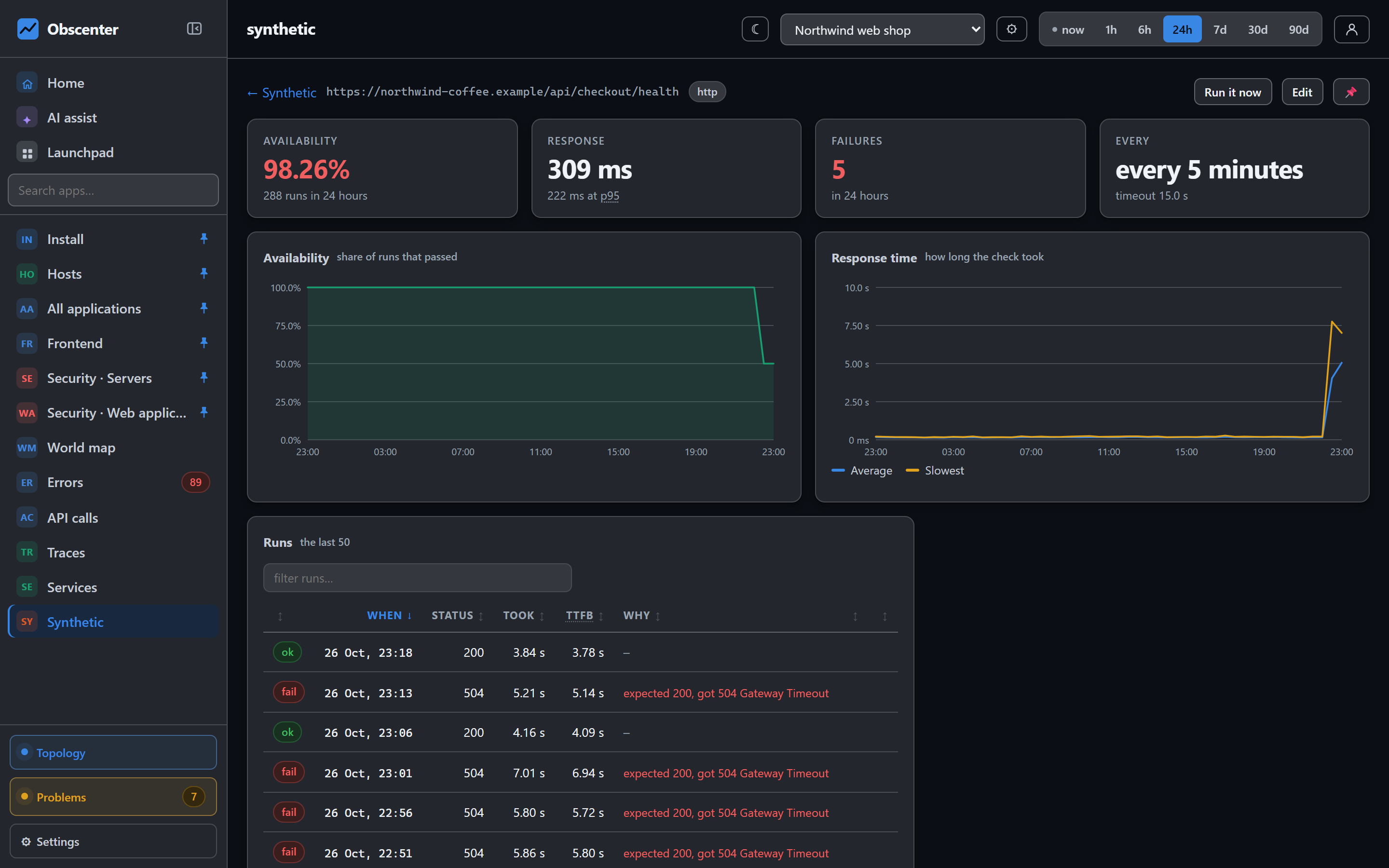
A check's page shows its availability timeline, its recent runs with their phases, and its failures, with screenshots for browser checks. Screenshots are kept for 7 days and runs for 90.
Tickets
- Failing check: two failed runs in a row open a serious ticket, and four make it critical.
- Certificate: 14 days or less left opens a warning, 7 days is serious, and 3 days is critical.
Runs that failed only because no browser is installed are ignored. An availability objective on a check gives you an error budget. See SLOs and error budgets. The AI assistant can list your checks and their state.