Docs Frontend
Session replay and privacy masking
Watch recorded user sessions: per-application sampling, input masking by default, the rum-block and rum-mask classes, retention and storage costs.
Session replay lets you watch what a visitor saw: the page as it was laid out, the mouse movements, scrolling and clicks. It is recorded with rrweb, which is served by your own install.
Turning it on and down
Replay is set per application under Application settings → Session replay — what share of visitors is recorded, from 0% to 100%. New applications start at 100%, so everything works on the first try. Turn it down, or to 0, if that is not what you want. The choice sticks to a visitor: someone in the sample is recorded for their whole visit, so you never get half sessions. Replay sampling is independent of the application's general sampling.
The recorder is not part of the tag. It loads lazily, and only for visitors in the sample. At 10%, nine visitors in ten never download it. The tag's data-replay attribute (0 to 1), if present, overrides the setting for that page.
What is masked
- Every form field's value is masked in the browser before it leaves: inputs, text areas, selects, passwords and card numbers.
- Elements with the class
rum-blockare left out of the recording entirely. The selectors indata-replay-blockon the tag are left out too. - Text inside elements with the class
rum-maskis hidden. - Canvas content is not recorded, and fonts are not collected.
Add rum-mask to anything that shows personal data as text, such as an account page or an address. Add rum-block to anything that must not be recorded at all. The masking is tested end to end. A test records a page with masked text, a blocked element and a password field, and checks that none of them appears in what was sent.
Playback
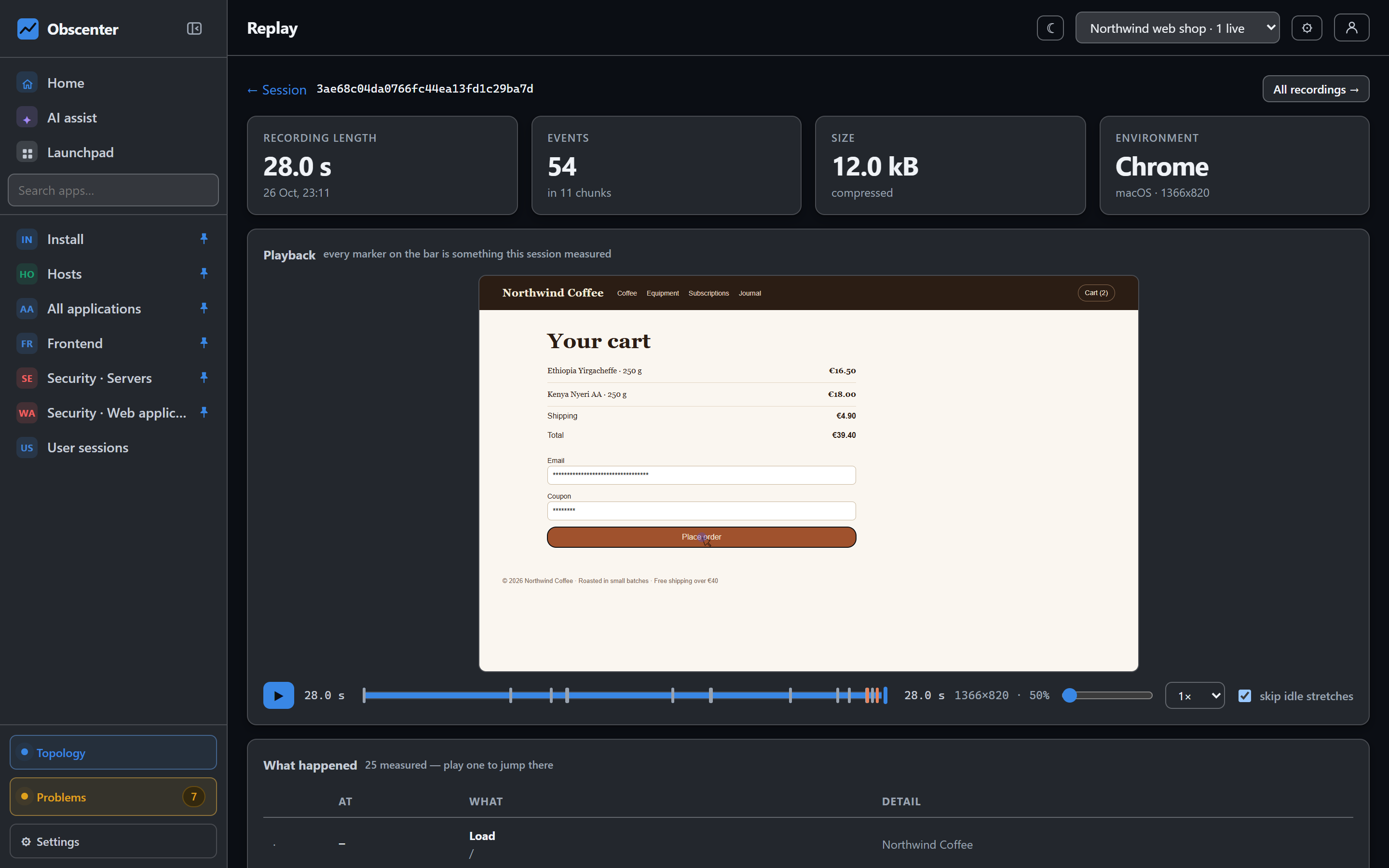
Frontend → Session replay lists the recordings. For each it shows the start time, recording length, user, entry page, environment, views, errors and size. The tiles above show how many recordings there are, how long they are kept, how much storage they use, and the sampling. Sessions that have a recording also show a play button in the session list and on the session page.
The player has speeds from 0.5× to 8× and can skip idle stretches. Markers on its timeline jump to errors, rage clicks, dead clicks, page changes, clicks, inputs, custom events and failed requests. These are the moments a recording is usually watched for. A list beside it, What happened, has a jump button per event. Playback runs in a sandboxed frame with scripts disabled, because the recorded page is someone else's content.
What it costs
| Recorder | About 23 kB gzipped, for sampled visitors only, loaded lazily |
| Storage | Gzipped. Real recordings compress about three times. |
| Per session | At most 8 MB compressed. After that the recording stops on its own. |
| Retention | Recording retention (days): 7 by default, 1 to 365. Separate from the application's data retention. |
A whole-install limit on replay days or total size can be set under System health. See Limits.
Recordings and attention heatmaps
Stored recordings are also what the attention heatmap on a page's detail is rebuilt from: which part of the page was on screen, and for how long. That works for visits recorded before you ever opened the heatmap. See Pages and attention heatmaps.
Mobile apps
React Native apps have their own native replay, as screen video or as a wireframe. Unlike the browser recorder, the video mode does not mask anything. See React Native and Expo apps.