Docs Profiling
Profiling: CPU, memory, threads and code
Continuous profiling for Node.js in production: sampled CPU frames, heap growth and allocation sampling, event loop saturation, and pinned functions.
The Profiling group answers what the install is spending itself on. CPU shows where processor time goes, Memory shows which heaps grow, Threads shows whether the event loop keeps up, and Code shows what is inside the processes. These pages read what the agent measures inside instrumented Node.js services. See Tracing Node.js services.
Switching it on
Both samplers are off until you ask for them. The switches are under Settings → Agent & keys → Server agent:
- sample where the time goes inside a request: the CPU profiler.
- sample where the memory goes: allocation sampling. It needs the CPU switch on, because both share one inspector session.
The switches apply to the whole install, and reach the agents on their next report.
CPU
The CPU profiler is V8's own sampling profiler. It samples the stack every 6 ms by default. Samples are attributed only to a request that ran alone in the process, so a frame is never blamed on the wrong request. A call tree needs at least eight samples, roughly a 48 ms request at the default interval. This is how a slow request that waited on no database and no other service still gets an answer: the function in your own code that spent the time.
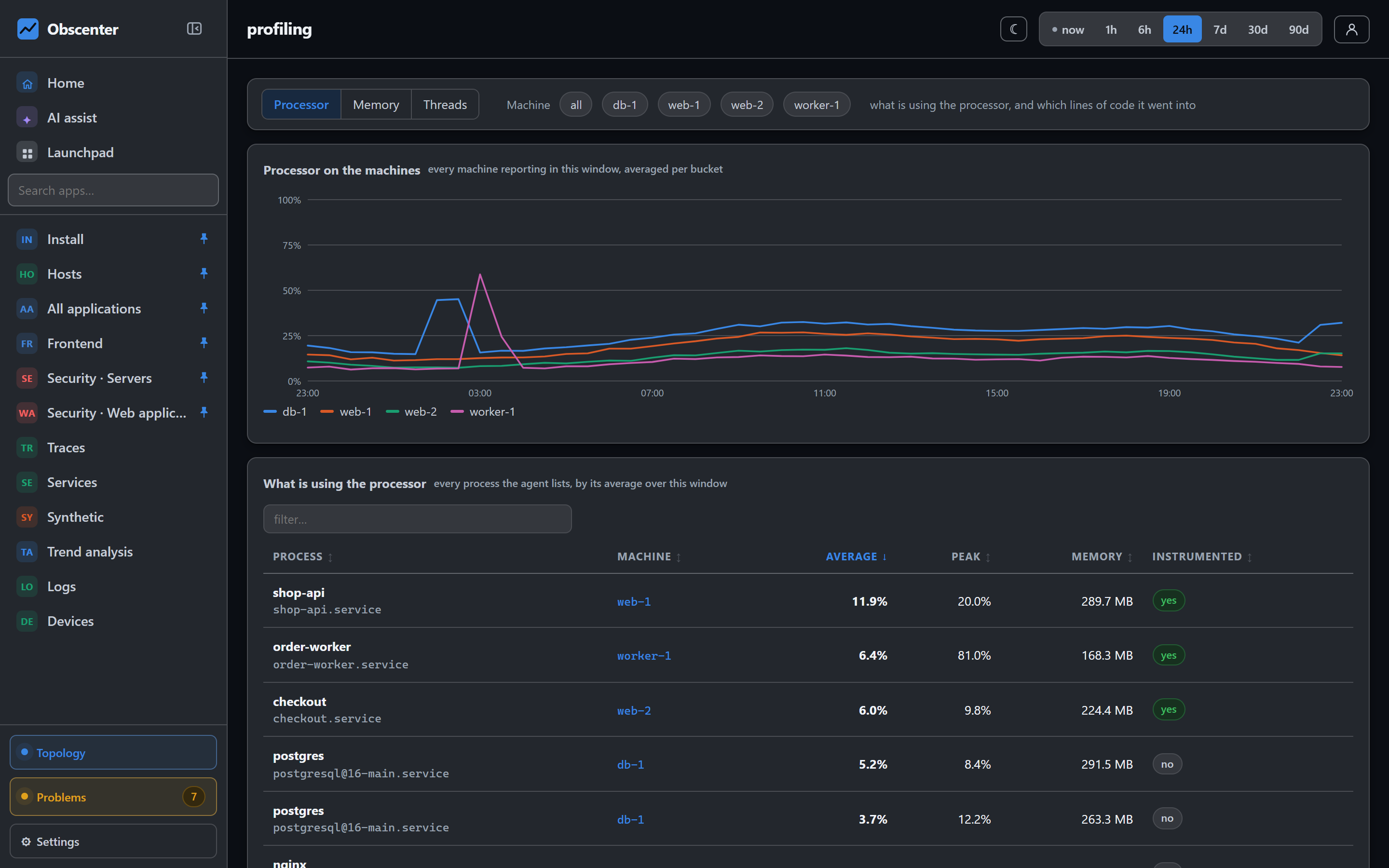
The profiler keeps to a budget: by default 1% of the main thread's time. It runs in windows spaced by what they cost, pauses on an idle process, and pauses itself if starting it ever blocks for too long. The page shows processor time by machine and by process over time, with the sampled functions underneath.
Memory
The heaps ranks every service's heap by how fast it is growing, in MB an hour. Growth is left blank under half an hour of samples, and is red from 20 MB an hour. The heap is also shown against its limit: amber from 70%, red from 85%.
With allocation sampling on, one allocation in every 512 kB is sampled and followed. The page can then name the code that is holding on to memory, not only say that memory grows.
A leak opens a ticket by itself. The engine looks at six hours with no restart, and opens a ticket when a straight line fits the growth well and the heap has grown by at least 32 MB or 20%. The ticket says how many hours are left before the heap reaches its limit. Under a day is critical, and under a week is serious.
Threads
A Node.js process has one main thread, and while it is held nothing else runs. The page shows two readings per service:
- Busy: how much of the time the thread was working.
- Waited: how long a callback that was ready had to wait for the thread, at p99 against the median.
From those two numbers the page tells you which situation you are in:
- Saturated: the thread is busy most of the time and callbacks queue. Busy is 0.8 or more and p99 is 50 ms or more.
- Held: the p99 is high while the median is low. Something occasionally holds the thread for a long time.
- Never sleeps: the thread is busy, but nothing waits for it.
Node.js has no mutex to look at, so the page does not call any of this a lock. It is the closest thing Node has to lock contention. Saturation and held threads open tickets. So does a service whose requests show high loop lag at p75.
React Native apps report long tasks on their JavaScript thread in the same way. See React Native and Expo apps.
Code
Profiling → Code shows two different things side by side, and says which is which:
- Libraries in the processes is an inventory: every package the instrumented processes loaded. This one is complete. It feeds vulnerability scanning.
- Functions and classes is a sample: what the profiler saw running, not a list of what exists. Switch between Your code and Everything to include the runtime and
node_modules. Functions your code declares through OpenTelemetry appear as always measured.
What the agent instruments lists the libraries the agent hooks, each with a checkbox, on by default. A change takes effect within a minute, with no restart.
The page shows only the services and machines your account can see.
Pins
The sampler keeps the branches that matter most per request, and drops the rest below a floor. To keep a function measured regardless, Pin it. The agents keep it from their next report on, and it appears under Kept measured with its own chart. You can also pin a function that has not been seen yet, by its exact name, with Watch a function by name. That needs the service to restart. A pin keeps a branch past the floor. It cannot make the sampler look more often.
An install can have up to 50 pins. The cost is small: on the measured service, a report grew by about 2%, roughly a kilobyte per request.