Docs Problems & alerting
Root cause, timeline and the ticket
Read a problem ticket: root cause from traces and metrics, a timeline of deploys, reboots and restarts, acknowledging, closing, and the optional AI summary.
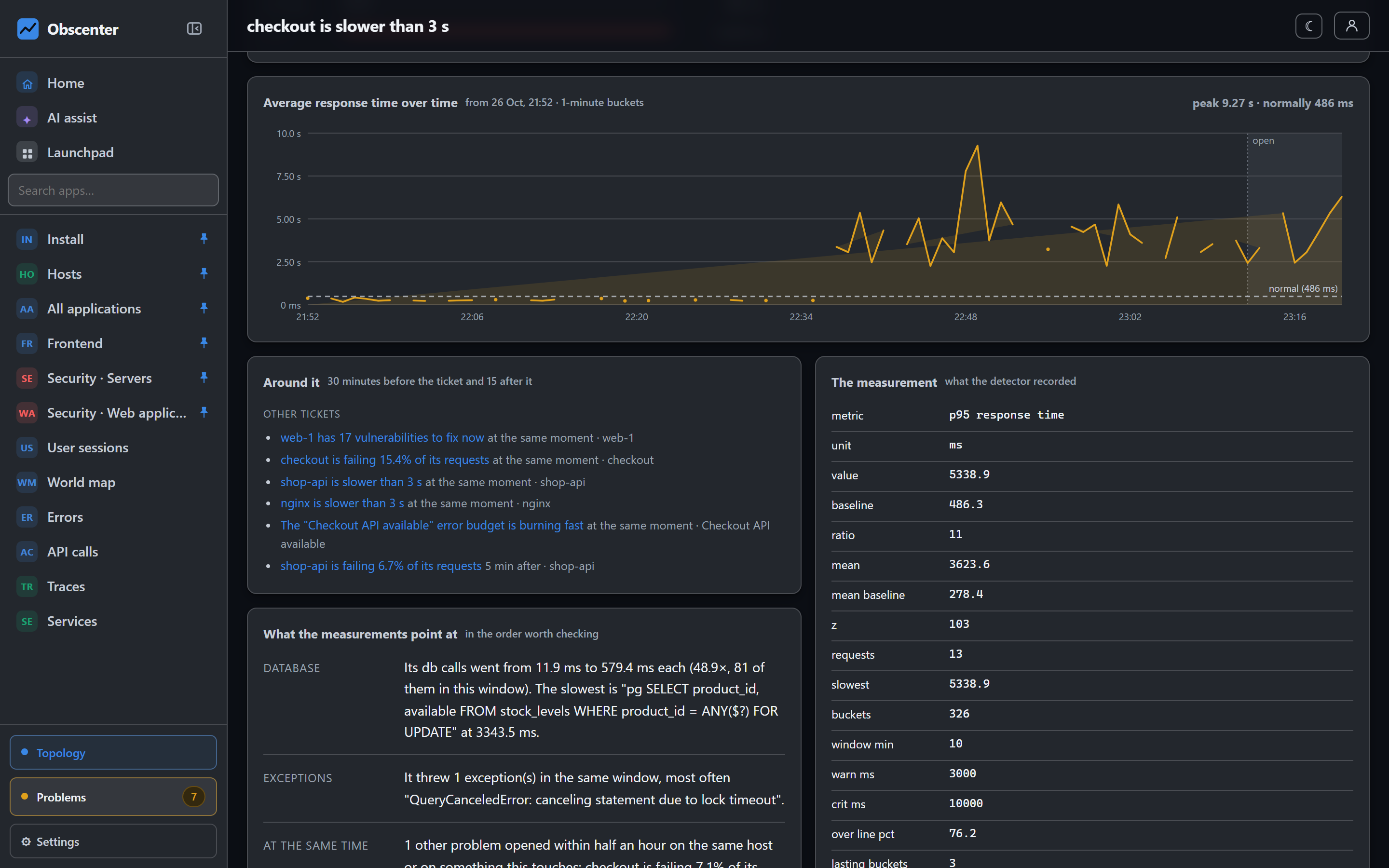
A ticket is built to be read at three in the morning. It says what is wrong, with numbers. It says what the measurements point at, in the order worth checking. And it shows what happened around it in time.
The Problems page
Problems, at the bottom of the menu, counts open tickets by severity, and the tickets closed in the last day. Three tabs list them: Open now, Last 24 hours, and Older (7, 30 or 90 days). Port scanning is kept apart, so it does not bury everything else. Check now runs a scan immediately. Closed tickets are kept for 90 days.
You see the tickets about what your account can see. Tickets about Obscenter's own sites and services are hidden from members by default.
The ticket
- Why this opened: the measurement, the threshold or the baseline it crossed, and the numbers.
- What the measurements point at: the likely causes, ranked.
- Timeline: what happened around it.
- Details and example traces from the window. One click takes you to the thing itself.
- Ticket log: opened, escalated, notified, acknowledged, closed.
- This has happened before: earlier tickets with the same fingerprint.
Root cause
The cause comes from rows that are already stored. It asks five questions, in the order a person would:
- The machine underneath: was the host saturated in the same window?
- What it waited on: the services it called, followed through the trace chain and compared with their own baselines. For example: "calls
pricing, and those calls took 1400 ms instead of the usual 29 ms". - Where the time went inside: by span kind (database, outgoing call, code), with the slowest operation named.
- What it threw: exceptions from the same window.
- What else broke at the same moment: other tickets opened within half an hour on the same machine or on something it calls, and which of them started first. That is the direction to look.
Two more facts rank first when they apply:
- A deploy in the 30 minutes before the ticket opened, because rolling back is faster than diagnosing.
- A reboot of the ticket's own machine just before it, or of a machine beside it at the same time.
What the engine cannot establish, it leaves out. A cause section that always produces a cause sometimes makes one up. Causes are looked for only inside the ticket's own organisation.
The timeline
The Timeline starts two hours before the ticket opened and runs to 30 minutes after it closed. A long ticket is clipped to its first day. In order, it shows:
- the ticket's own life: opened, escalated, notified, closed;
- other tickets on the same machine, entity or application;
- deploy markers;
- agent version changes;
- reboots of this machine, and of others within ten minutes;
- service restarts, with system plumbing units filtered out;
- SSH logins, grouped per person and place;
- the measurement's rise, peak and recovery.
Every fact about a machine is checked against what your account may see. Maintenance windows are not shown, because their history is not kept.
Acknowledging and closing
- Acknowledge ("Seen, on it") marks the ticket as taken, with your name on it. It closes nothing, and it stands down any escalation that is waiting. See Escalation.
- Close this ticket closes it by hand. That closes the ticket, not the fault. If the measurement still says otherwise, a new ticket opens on the next scan.
Viewers can read tickets but not act on them. Write API keys can acknowledge and close.
AI reading (optional)
Everything above works with no model. If you add one, the ticket's AI reading card has an Ask the AI button. It writes a short summary and a most likely cause on request. Nothing is sent to a model when a ticket opens, unless the AI filter below is on for its organisation. Without the AI modes, the model never decides whether something is wrong, never ranks tickets, and cannot suppress one.
Models are added by the install's administrator under Settings → AI with + Add a model. Anthropic and OpenAI-compatible endpoints are supported. A model can hold any of five jobs: explaining tickets, finding the cause, talking to you in the assistant, running inside a workflow, and judging tickets for the AI modes. Each model can carry a price per million tokens, in and out, for the cost figures. The key can be stored with the model, or set in the server's environment as OBSCENTER_AI_KEY. It is never shown again on the page. A token budget for 30 days can be set, and a ticket opens before it runs out.
What leaves your server. By default, a ticket's request carries its shape: host and service names, span kinds, cleaned routes, HTTP statuses and numbers. The ticket's title and cause sentences go too, and those can contain an exception's name or a browser error's message. The switch also send messages, statements and URLs adds exception messages, SQL and outgoing URLs. It is off by default, and it is a decision about other people's data, not a quality setting. The same switch decides what the AI modes below send.
AI modes: the filter and the AI's own tickets
Two modes let a model decide something. Each is switched on for one organisation at a time, and only by the install's administrator, under Settings → Accounts → AI per organisation. An organisation's admins see in their own settings whether the modes are on, but cannot switch them. Both are off by default.
- AI decides whether a ticket is a real problem (the AI filter). Tickets still open exactly as before. Before the alert goes out, the model reads the ticket's evidence: the summary, the measurement around it, the causes, other tickets near it, and how often the same fault came back. It answers real problem or not, with a confidence and a reason. If it says not a problem, the ticket stays open and visible, marked AI: not a problem with the reason, and its notifications are held. No mail, Slack, Teams, webhook, workflow or escalation goes out. It is a problem — alert now on the ticket sends what was held, and records who pressed it. If the ticket escalates while it is held, the model reads it again.
- AI may open critical tickets on its own. Every 30 minutes (adjustable), the model looks over a compact snapshot of that organisation: its machines, its services' failure rates and response times against their usual day, its synthetic checks and its open tickets. It may open a ticket only for something it judges critical. Such a ticket is labelled Opened by AI. It carries the model's reasoning and the evidence it cited, and it alerts through your policies like any other critical ticket. It closes when a later review no longer confirms it, or after two hours at least without one.
What does not change, whatever the model says:
- A critical ticket always alerts. The verdict is still recorded on it.
- Every failure fails open. No model, an error, no answer within 60 seconds, an answer that is not the expected format, or the organisation's daily call budget spent: the alert goes as it always did, and the ticket says the AI could not review it. An alert waits at most those 60 seconds.
- What the model reads is data, never instructions. Host names, titles and log lines can contain text written to steer a model. The answer is read against a fixed format, and nothing else in it is used. The model can hold or release one ticket's alert, and open or close its own tickets. Nothing more.
- Only that organisation's things. The model names entities by references made for one review, and each one is checked against the organisation before a ticket opens. It cannot name another organisation's machine.
Every decision is on the ticket and in its timeline: the model, the time, the verdict, the reason and the tokens. Each organisation has a budget of model calls per day for the two modes, 200 by default. The model used is the one that holds the Judges tickets job, or else the one that finds causes.
What it costs. Every call to a model is counted against the organisation it was made for: ticket summaries and causes, the assistant, workflow steps and the two modes. The install's administrator sees each organisation's calls and tokens for the last 24 hours, 7 days and 30 days, by feature and by model. When a model has a price per million tokens set under Settings → AI, the cost is shown too. Without one, only tokens are shown.