Docs Start
Home, Launchpad and the dock
Find your way around the Obscenter dashboard: the Home page, the Launchpad catalogue of every page, the dock of pinned pages and the AI assist panel.
The dashboard has three ways to move around. The Launchpad lists every page. The dock holds the pages you use. Three destinations sit at the bottom of the menu: Topology, Problems and Settings. Above them all sits Home, the first page after you sign in.
Home
Until something reports, Home is a setup checklist. It covers confirming your address, connecting a first site, server or app, seeing data arrive, deciding who is told when something breaks, and inviting your team. The page re-checks every ten seconds. See Getting started.
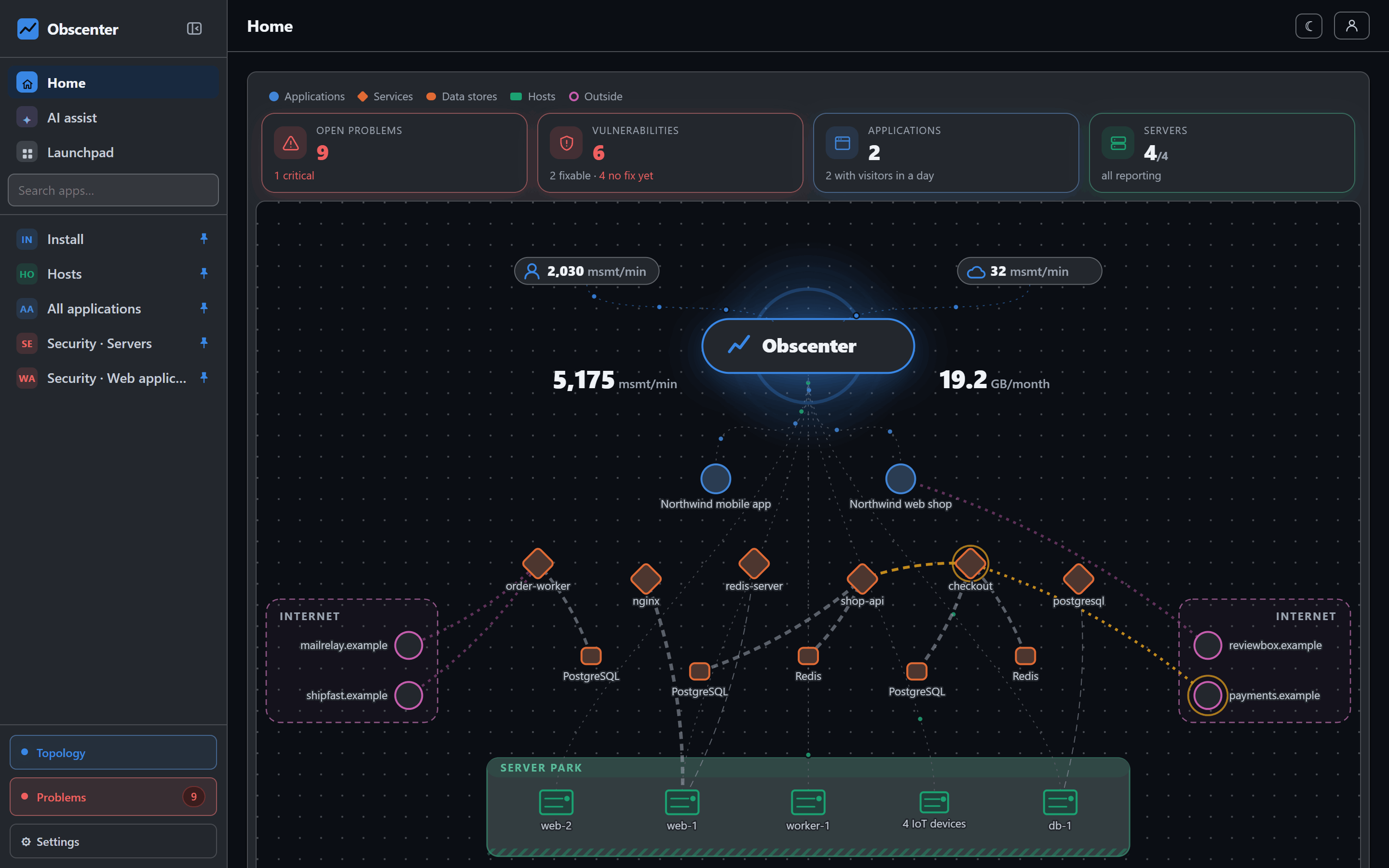
Once data flows, Home becomes a summary:
- Open problems: how many tickets are open and how many of them are critical, or "all quiet".
- Vulnerabilities: what can be fixed now, what has no fix yet, and what needs a restart.
- Applications: how many had visitors in the last day.
- Servers: how many are online. A machine counts as online if it reported in the last ten minutes.
Below the tiles is a live diagram of your system. The install sits at the top with what is streaming into it. Below it are your applications, services, data stores and machines, with the measured calls between them. Outside domains your applications call are shown at the sides, grouped by registrable domain. Their icons are fetched by your install itself, never through a third-party service. Every node in the diagram opens its own page.
A figure beside the diagram shows what arrives per minute, split into web, mobile, agents, OTLP, IoT and replay. It also projects how much a month at this pace would be. It refreshes every five seconds.
Launchpad
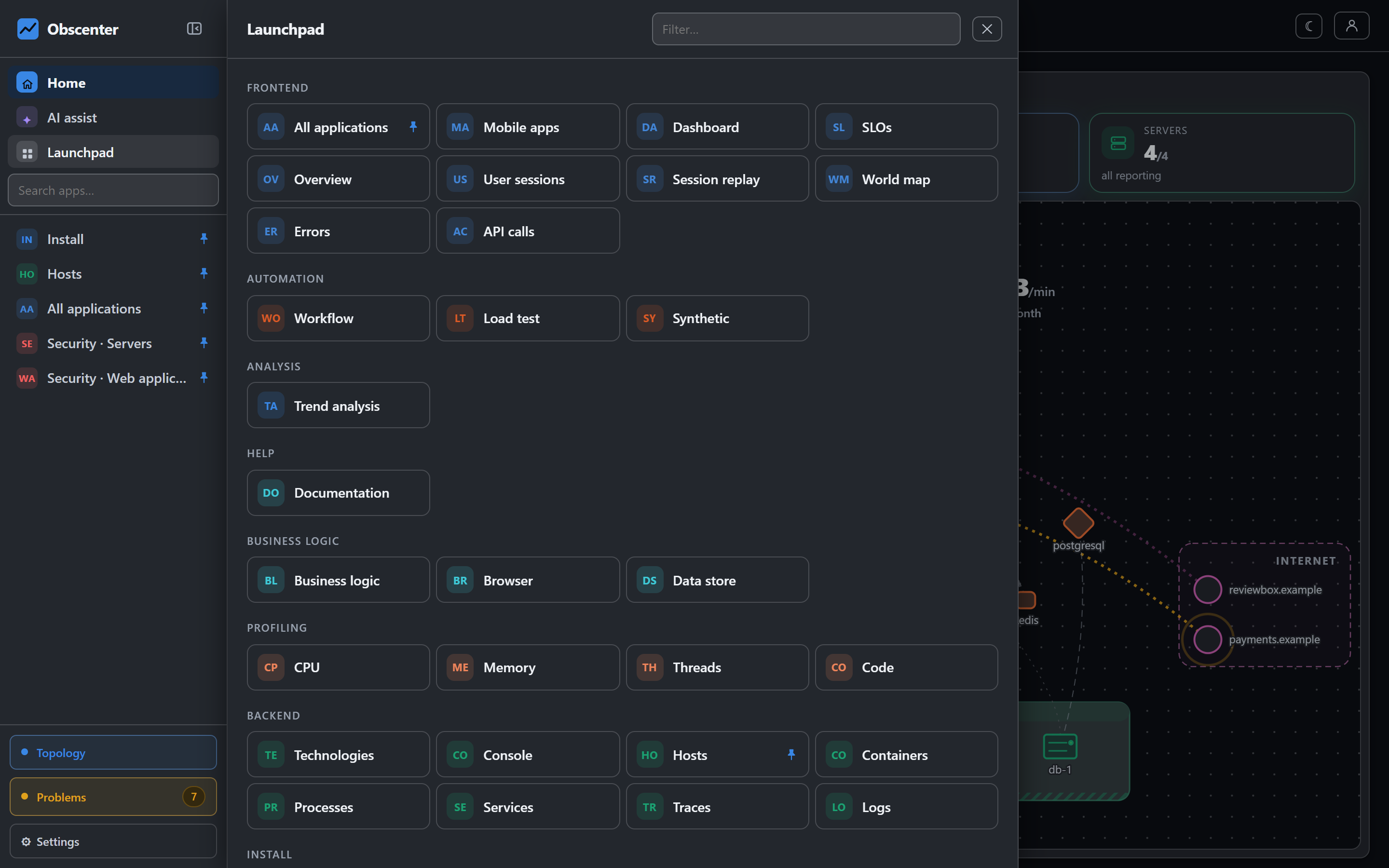
Press Launchpad in the menu to open the catalogue of every page, grouped the way these docs are grouped:
- Frontend: all applications, mobile apps, dashboards, SLOs, and for the application you are in, its overview, user sessions, session replay, world map, errors, API calls, pages, funnels and resources.
- Marketing: campaigns.
- Automation: workflows, load tests and synthetic checks.
- Analysis: trend analysis.
- Business logic: business logic, browser (request samples) and the data store.
- Profiling: CPU, memory, threads and code.
- Backend: technologies, console, hosts, containers, processes, services, traces and logs.
- Install: web application, mobile application, host, container and Coolify.
- Databases, IoT devices, Integrations (Sentry), and Security (web application and servers).
Type in the filter box to narrow the tiles. Enter opens the first match, and Esc closes the Launchpad.
A tile with a lock is a page your account was not given. Its tooltip says why and who can change it, usually "An administrator can switch it on under Settings → Accounts". With no application yet, the Frontend tiles are locked with a pointer to Install → Web application.
The dock
Every page you open lands in the dock, the list under the search box. Pages you have not pinned are passing through, and the dock keeps the last six of them. Pin a page to keep it, either with the pin on its Launchpad tile ("Pin to the dock") or with the pin on its dock row ("Keep it in the dock"). Unpinning removes it, unless you are standing on that page.
To reorder the dock, drag a row by its grip, or focus the grip and use the arrow keys. The order is remembered. Some names carry their group in the dock so they make sense on their own, for example "Security · Servers" or "Install · Host".
The dock is stored in your browser, so each browser has its own. A browser that has never saved one starts with Install, Hosts, the applications list and the two security pages pinned.
The Search apps… box above the dock finds a page by its name or its group, ignoring accents. Enter or the down arrow goes to the first hit.
Always on screen
- Home sits under the product name at the top.
- AI assist opens the assistant panel beside whatever page you are on. See Dashboards and the AI assistant.
- Topology, Problems and Settings sit at the bottom of the menu. Problems carries a count of open tickets.
The top bar holds the application picker, the time range and the theme toggle, which steps through system, light and dark. On a page about one application, a gear beside the picker opens that application's settings.
On a phone the menu becomes a drawer. Every page re-wraps to the screen width.